Maximo Collaborate, Part 1 · Manage add-on · Configuration guide
Configure and Use Maximo Collaborate in MAS 9.2
Everything a Maximo administrator sets so a technician can call an expert from a work order: where each setting lives in 9.2, what every option means, and how to prove the call works.
Screens from a MAS 9.2 lab: Manage 9.2.197, Collaborate add-on 9.2.38, Maximo Mobile 9.2.84, captured 18 October 2026.
Start here
For the Maximo administrator who prepares Collaborate for technicians and experts.
- Are you ready to use Collaborate? — Licence tier, deployment, two people, ICE servers and push, before the configuration steps.
- Confirm Collaborate is deployed — Catalog, workspace status, component version.
- Give technicians and experts access — Security groups and object structures.
- Create the expert group — Person group flagged as an expert group, with its members.
- Add ICE servers — One STUN and one TURN server in Collaborate app settings.
- Turn on push notifications — Expert availability and invitations travel by push.
- Run a session from a work order — Technician and expert as two separate people.
- Check the history — Collaboration sessions under Work Orders.
- Sign it off — Configured, exercised, independently verified.
Are you ready to use Maximo Collaborate?
A technician can call an expert only after the add-on is deployed, two people exist, push can reach the expert, and a STUN and a TURN server are configured. Creating a session record is the record of the request. The live call also needs signalling and a media path.
Before configuration
Know which tier your dashboard assigns when a person is granted Collaborate, and have a cluster that can host the add-on. IBM’s Collaborate 9.2 install topic is the procedure for the deployment.
Before the first successful journey
Two different people, an expert person group, one STUN server, one TURN server, push for the expert’s device, and a work order the technician can open.
Before production use
The TURN server is one you operate or subscribe to, certificates and push credentials are production credentials, and someone owns the path when a call connects and the other person hears nothing.
Licensing, entitlement and AppPoints
Two current IBM topics describe the Collaborate tier, and they do not use the same word. The MAS 9.2 licensing guidance says Collaborate is authorized and concurrent and that AppPoints are based on the Limited tier. The same guidance’s application table says Maximo Mobile includes Maximo Mobile, Maximo Collaborate or third-party mobile at Limited, Base and Premium. The user-access topic for MAS 9.1 and later says the Base entitlement adds Maximo Collaborate and Maximo Health on top of Limited. Grant the Collaborate security group, then read the tier the AppPoints Usage dashboard actually assigns to that person, and apply the Limited ratio or the Base ratio that matches the dashboard. There is no Collaborate line on the install-AppPoints table. A third-party TURN service, Apple and Google push credentials, and any device management suite are licensed by those providers.
Keep four facts separate for Maximo Collaborate. Entitlement is the proof of entitlement and the License Information for IBM Maximo Application Suite. The MAS 9.2 licensing guidance supplements that agreement. Available AppPoints are the pool shown on the AppPoints Usage dashboard: Suite administration, then Suite, then Administration, then AppPoints Usage. Assigned access is the security group together with the user type on the person: Limited, Base or Premium, and Authorized or Concurrent. Consumption is what that assignment draws. Authorized users and administrators reserve AppPoints continuously. Concurrent users draw AppPoints while they are signed in. Install AppPoints stay reserved for the life of that environment. A non-production install of a component draws no install AppPoints when the same component is already installed in production. Administrators and User Management users open the dashboard. Other people need the LICENSEUSAGE security group. Compliance enforcement and idle timeout sit on the dashboard Configuration tab and are suite-administrator settings.
The same guidance publishes these user conversion ratios: Limited is 5 AppPoints for one concurrent user and 2 for one authorized user; Base is 10 concurrent and 3 authorized; Premium is 15 concurrent and 5 authorized; an administrative Base user is 10 AppPoints and an administrative Premium user is 15, both as authorized users. A Base administrator who already reserves 10 AppPoints can be given Premium application access with no further AppPoints. Those ratios were read from the MAS 9.2 licensing guidance on 18 October 2026. Your agreement sets how many AppPoints you purchased. An application that opens shows that the component is deployed. Read the proof of entitlement and the dashboard as well.
Installed and enabled applications
In MAS 9.2, Collaborate deploys from the catalog onto the Manage workspace. Confirm the catalog shows it deployed and the component version, then confirm the Collaborate and Collab Session applications open. Deployed is not the same as a working call. The configuration guide records the screens for the install check, the expert group, the ICE servers and push.
Foundation configuration
You need two people in the site: a technician and an expert. The expert belongs to a person group with Is expert group set. Skills on the expert’s labor record drive the skill match. A work order gives the session somewhere to live. Crafts, calendars and asset hierarchies are useful context and are not what makes the call connect.
Product configuration
Follow the configuration guide for the exact screens. The mandatory path is the add-on deployed, security groups for technician and expert, the expert person group, one STUN and one TURN entry in Collaborate app settings, and push configured so the expert’s device can be invited. Session history in Collab Session is the audit trail. Review the default ICE list before production so a laboratory TURN server is not the one every site uses.
Infrastructure and integration
Signalling is the Collaborate service on the workspace. Media between the two devices uses the STUN and TURN servers you enter. Push uses the MAS push configuration and the vendor credentials for the device platform. The devices need a route to those servers, with DNS and TLS that match the URLs you configured. A single-node topology is called out in IBM’s Collaborate install topic. Read that topic for the cluster you have before you start the deployment.
Data and operational readiness
The first journey needs one work order, the technician, the expert, and the expert group. A session row with status open proves the request was saved. A live call proves signalling, push and the media path as well. If the session saves and the expert’s device never rings, check push and the device identity. If the devices join and there is no audio, check TURN. If the application is missing, check the catalog and the security group.
Setup order for a call
- 1. Entitlement tier, read from the dashboard Compare the 9.2 licensing guidance and the user-access topic with the tier this user is assigned.
- 2. Collaborate deployed on the Manage workspace Catalog deployment and the applications open.
- 3. Technician, expert and expert person group Two people. The group is marked as an expert group.
- 4. STUN, TURN and push ICE servers in Collaborate app settings. Push for the invitation.
- 5. A work order and a session The session record, then a call between the two devices.
| Requirement | Why needed | Mandatory/Conditional/Optional | Where to configure or verify | Minimum working example | Verification procedure | Consequence if missing | Remediation | Source |
|---|---|---|---|---|---|---|---|---|
| The tier the dashboard assigns for Collaborate | IBM’s 9.2 licensing guidance prices Collaborate at Limited, and the user-access topic adds Collaborate at Base. The dashboard is the assignment that consumes points. | Mandatory | Suite administration → Suite → Administration → AppPoints Usage, after the Collaborate group is granted. Manage → Security → Security Groups, and the suite user type. | One technician and one expert, each granted Collaborate, with the tier the dashboard shows written down. | Grant the group, open AppPoints Usage, and record Limited or Base for each person. Apply that row’s ratio from the 9.2 guidance. | You planned Limited points and the dashboard reserved Base, or the reverse. | Match the purchase to the tier the dashboard assigns. Change the groups if they pull in Health, Predict or an industry application and lift the tier. | Licensing in Maximo Application Suite 9.2 |
| Collaborate deployed, and the applications open | The add-on runs the signalling service beside Manage. | Mandatory | Suite administration → Catalog → Collaborate, on the Manage workspace. Applications Collaborate and Collab Session. | Catalog shows Collaborate deployed. Both applications open for an administrator. | Open the catalog tile and both applications. Record the component version beside this check. | The configuration screens are absent. | Deploy the add-on from the catalog using IBM’s 9.2 install topic for your cluster. | Installing and deploying Maximo Collaborate |
| Two people and an expert person group | The technician invites a person. The product finds experts from person groups marked as expert groups. | Mandatory | People, Labor, Person Groups. Is expert group on the group. | Technician TECH-1, expert EXP-1, group PUMPS with Is expert group selected and EXP-1 as a member. | Search for an expert from the technician’s session and see EXP-1 offered from PUMPS. | The session screen has nobody to invite. | Create the two people and the group before you test push or TURN. | User access and entitlements in MAS 9.1 and later |
| One STUN server and one TURN server | The devices discover each other through STUN and relay media through TURN when a direct path is blocked. | Mandatory | Collaborate app settings, ICE servers. | One STUN URL and one TURN URL, with the username and credential the TURN server expects. | Save the servers, then place a call between two devices on the networks technicians actually use. | The session opens and audio or video never starts. | Correct the ICE URLs and credentials. A session row can exist while this path is still down. | Configuring Collaborate app settings |
| Push to the expert’s device | The invitation travels by push. Online presence uses the same service. | Mandatory | Suite push configuration, and the Mobile device registered to the expert. | Push credentials for the platform the expert uses, and EXP-1 signed in on that device. | Send an invitation and confirm the device receives it. | The session stays open and the expert is never invited. | Register the device and the push credentials. Check push before you change TURN. | Configuring push notifications |
| A work order the technician can open | The session is raised from the work and the summary is stored against it. | Mandatory | Work Order Tracking and Maximo Mobile or the Collaborate application. | Work order WO-1 on the training site, assigned so TECH-1 can open it. | Open WO-1 as TECH-1 and start Get assistance or Contact expert. | The people and the servers are ready and the technician has no work order to start from. | Create the work order and grant the technician the work-order application. | Modules and applications in Maximo Application Suite 9.2 |
| A TURN subscription or server you operate | TURN is a third-party or self-hosted media relay. It is not an AppPoint quantity. | Conditional | The TURN provider’s subscription, or the server you run, plus the firewall path from both devices. | A TURN endpoint you control, with capacity for the number of simultaneous calls you expect. | Place a call from a network that cannot go device-to-device and confirm media still flows. | Calls work on the lab network and fail on the plant network. | Allow the TURN ports and host, or subscribe a TURN service that both networks can reach. | Interactive Connectivity Establishment (ICE) server |
A. Ready to configure
- You have read the tier on AppPoints Usage for a user who has the Collaborate group, and the proof of entitlement covers that tier.
- The catalog shows Collaborate deployed and the applications open.
- The cluster matches the install topic you are following.
- You have URLs for a STUN server and a TURN server, and push credentials for the device platform.
B. Ready for the first end-to-end journey
- TECH-1 and EXP-1 exist, and EXP-1 is in an expert person group.
- WO-1 opens for the technician.
- The technician creates a session and the session appears in Collab Session.
- The expert’s device receives the invitation.
- Both devices join and audio or video is exchanged. A saved session without media is only the first half of this list.
C. Ready for production operation
- TURN, push and TLS certificates are the production endpoints, with an owner for each.
- Expert groups match real skills, and labor skills are maintained by the people who staff those groups.
- A failed invitation is checked as push, a failed media path as TURN, and a missing application as catalog or security.
- Session history is readable by a supervisor who was not on the call.
- Device loss and expert absence have a support path that does not depend on one person’s phone.
Sources for this readiness check
Licence statements come from the IBM topic named on the row. Installation of a component is a separate check from entitlement.
- Licensing in Maximo Application Suite 9.2 — MAS 9.2 licensing guidance, verified 2026-10-18
- User access and entitlements in MAS 9.1 and later — MAS 9.1 and later, verified 2026-10-18
- Accessing the AppPoints Usage Dashboard — MAS 9.2, verified 2026-10-18
- Installing and deploying Maximo Collaborate — Maximo Collaborate 9.2, verified 2026-10-18
- Configuring Collaborate app settings — Maximo Manage 9.2, verified 2026-10-18
- Configuring push notifications — MAS continuous delivery, verified 2026-10-18
- Interactive Connectivity Establishment (ICE) server — MAS continuous delivery, verified 2026-10-18
- Modules and applications in Maximo Application Suite 9.2 — MAS 9.2, verified 2026-10-18
1 · Understand the components
Collaborate is a Manage add-on in 9.2. Its settings sit in four places you already know: the MAS catalog, Manage security, Mobile Configuration and MAS push configuration.
| Component | Where | What it does | For a live call |
|---|---|---|---|
| Collaborate add-on | Manage workspace, deployed from Catalog > Add-ons | Runs the Collaborate services beside Manage, including the signalling service the call uses. | Mandatory |
| Collaborate app (Contact Expert) | Maximo Mobile and the browser; application COLLABORATE | Where the technician asks for help and the expert accepts it. | Mandatory |
| Collaboration sessions (Collab Session) | Work Orders > Collab Session; application COLLABSESSION | Lists every session with its work order, asset, expert and technician, for supervisors and auditors. | Optional |
| Person Groups | Administration > Resources > Person Groups | Expert groups: a person group with Is expert group set, one per expertise area. | Mandatory |
| Labor | Administration > Resources > Labor | Technician profiles, crafts and skills, which drive Top Skill Matches. | Optional |
| Collaborate app settings | Mobile Configuration > Collaborate app settings | The ICE servers (STUN and TURN) that let two devices connect. | Mandatory |
| Push notification | MAS Administration > Configurations > Push Notification | Reports which experts are online and delivers the invitation to the expert's device. | Mandatory |
| Maximo Mobile | iOS and Android devices | Registers each user's device for push; the expert opens the invitation here. | Mandatory |
| Attachment storage | Manage attachments (persistent volume or S3 object storage) | Holds the session summary PDF attached to the work order. | Optional |
How a call flows
- The technician opens Contact Expert (or Get assistance on the work order) and types what they need advice about.
- Collaborate reads the expert groups (person groups with Is expert group set) and asks the push service which members are online. Online experts appear under Top Skill Matches and Additional Experts.
- The technician picks an expert. Collaborate writes a session record: status OPEN, the technician as PARTICIPANT, the expert as INVITEE.
- The push service sends the expert "Technician has invited you to join a collaborate session." Tapping it opens the expert's accept screen for that session.
- Both devices join the session room over the Collaborate signalling WebSocket, then exchange audio, video and frames over WebRTC through your STUN and TURN servers.
- During the session the technician streams the camera; the expert annotates frames and talks the technician through the job. Events are saved on the session as they happen.
- Either side ends the session. The session closes, the summary is written, and the summary PDF is attached to the work order. Supervisors review it in Collaboration sessions.
2 · Verify the installation
Confirm the add-on is deployed, which build is running, and that the applications open.
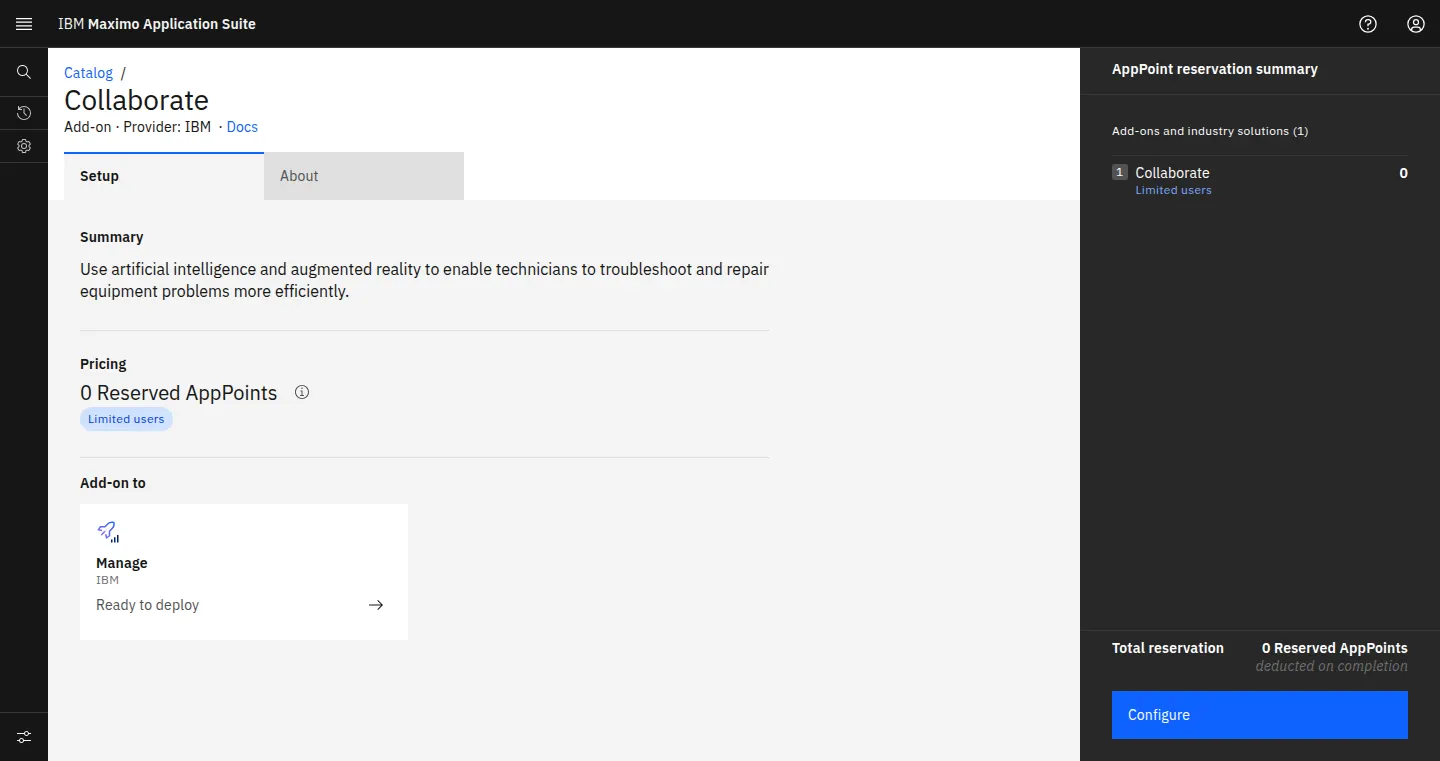
2.1 Open the Collaborate add-on in the catalog
Where: MAS Administration > Catalog > Add-ons > Collaborate
Do this: Select the Collaborate tile. Read the Setup tab: Summary, Pricing, Add-on to. To install, press Configure in the AppPoint reservation summary, tick Collaborate and its version on Update Manage workspace configuration, then Apply changes.
Why: In 9.2 Collaborate deploys into the Manage workspace from this page. The panel also shows the AppPoints it reserves.
Expected: Collaborate, Add-on, Provider IBM, Add-on to Manage.
In the 9.2.38 lab: Pricing "0 Reserved AppPoints", badge "Limited users", Add-on to Manage "Ready to deploy", Configure button in the reservation summary.
2.2 Check the workspace status
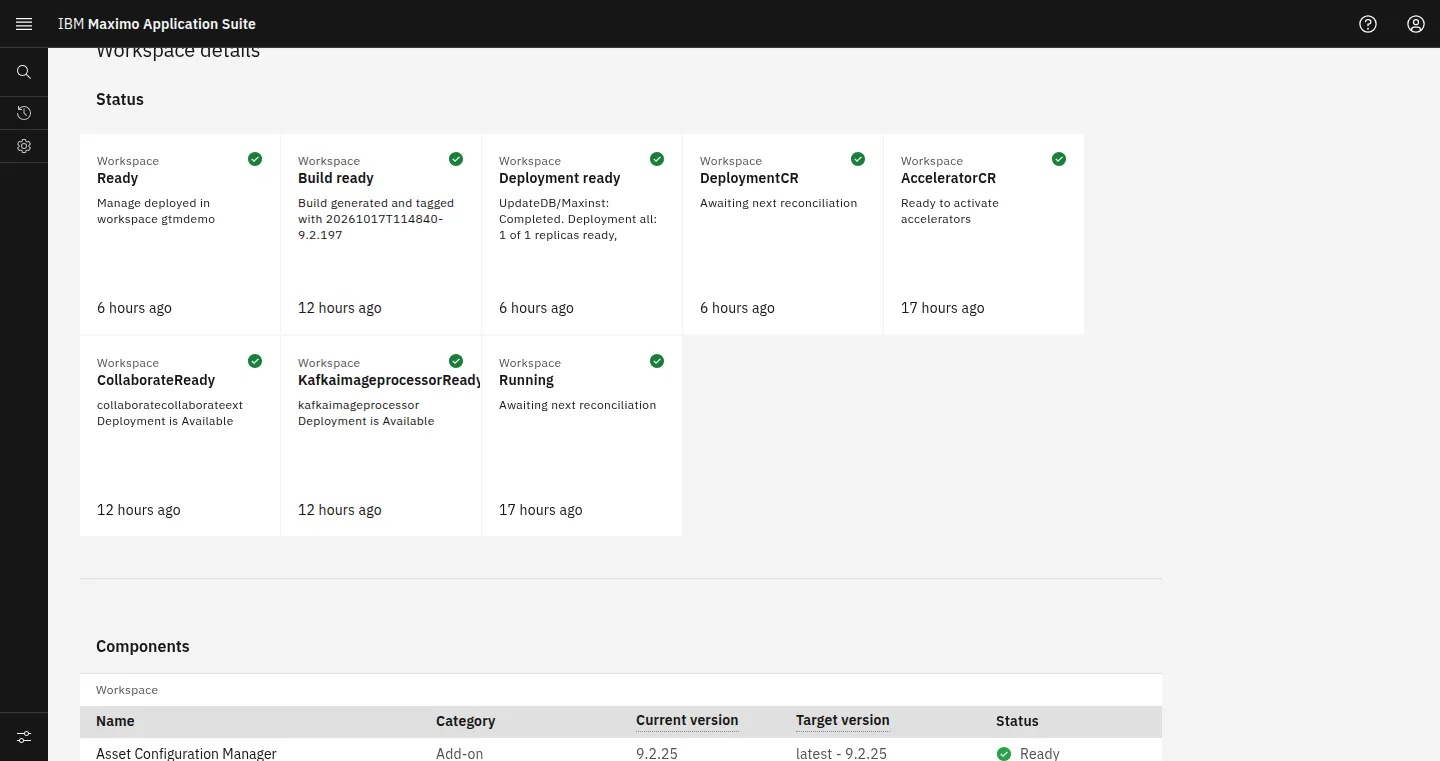
Where: MAS Administration > Workspaces > (your workspace) > Manage
Do this: Scroll to Status and find the CollaborateReady card.
Why: The add-on runs as its own deployment. Ready here means the Collaborate services are up.
Expected: CollaborateReady with a green tick.
In the 9.2.38 lab: CollaborateReady: "collaboratecollaborateext Deployment is Available".
2.3 Record the installed build
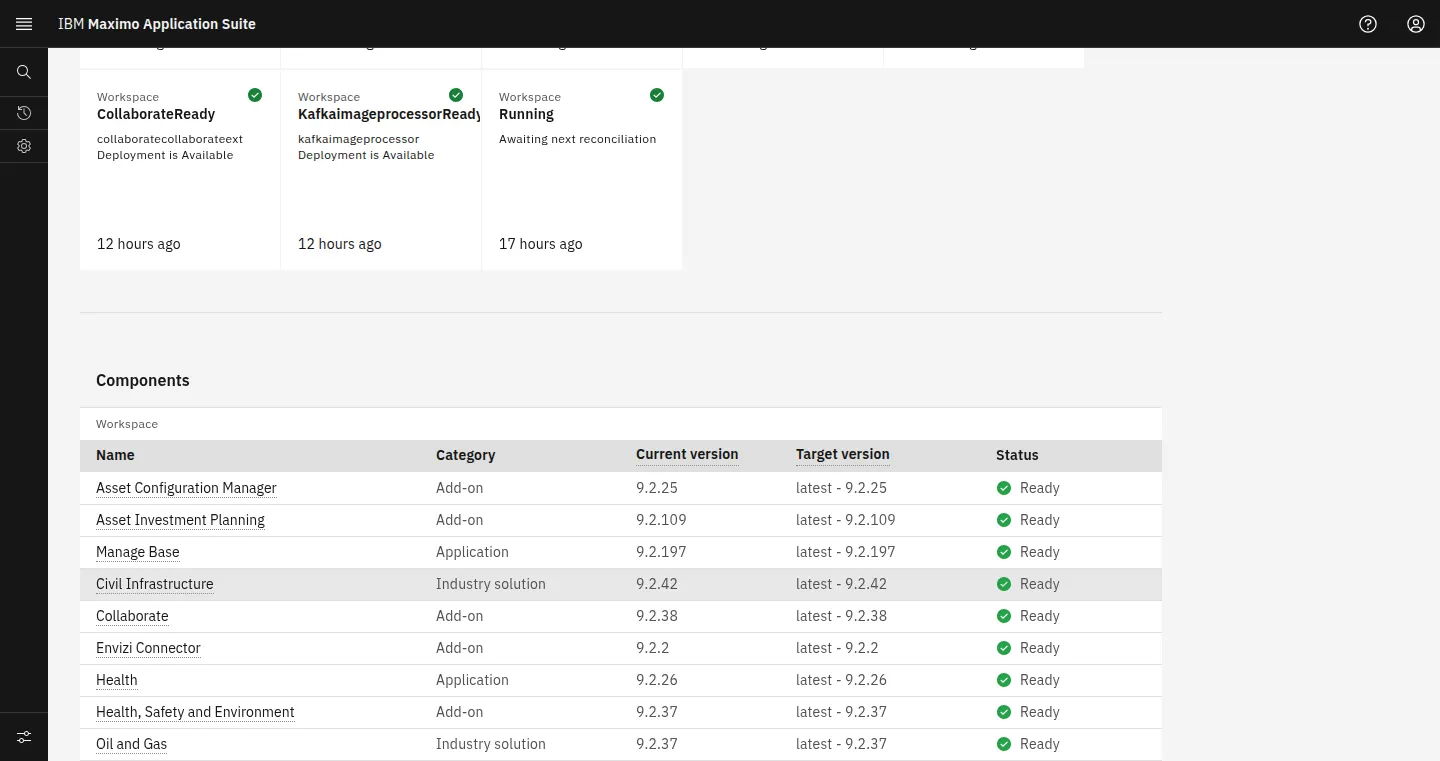
Where: Same page > Components
Do this: Find the Collaborate row and note Current version and Target version.
Why: IBM fixes ship as Collaborate builds (9.2.43 decline fix, 9.2.48 path-based routing). Support and these steps depend on the build.
Expected: Collaborate, Add-on, a version and Ready.
In the 9.2.38 lab: Collaborate Add-on 9.2.38, target "latest - 9.2.38", Ready. Manage Base 9.2.197. Health, Safety and Environment 9.2.37 and Oil and Gas 9.2.37 are installed in the same workspace.
2.4 Open the Collaborate applications
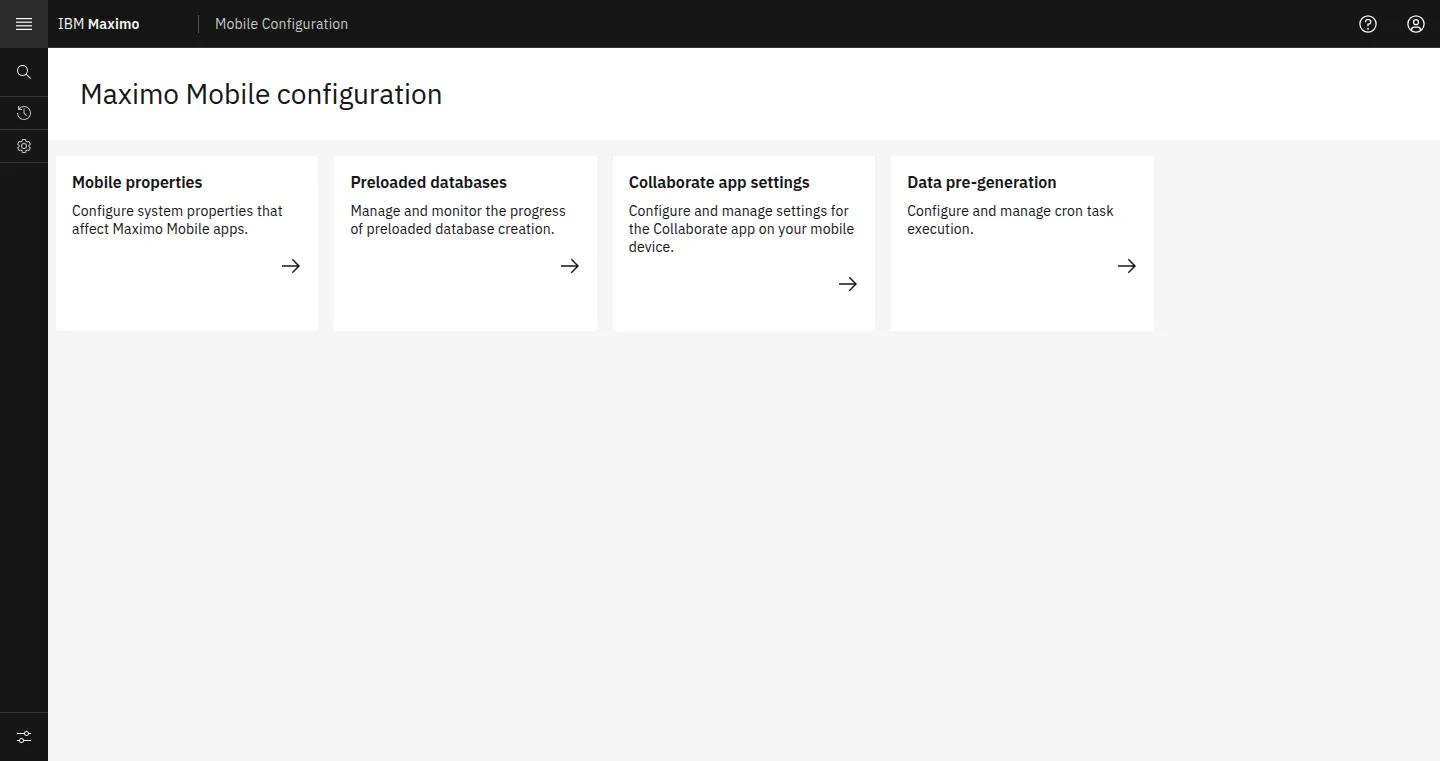
Where: Manage navigator search: Collaborate, Collab Session, Mobile Configuration
Do this: Open each one as an administrator.
Why: Proves the add-on registered its applications in Manage and your group can reach them.
Expected: Contact Expert, Collaborate sessions and the Collaborate app settings tile.
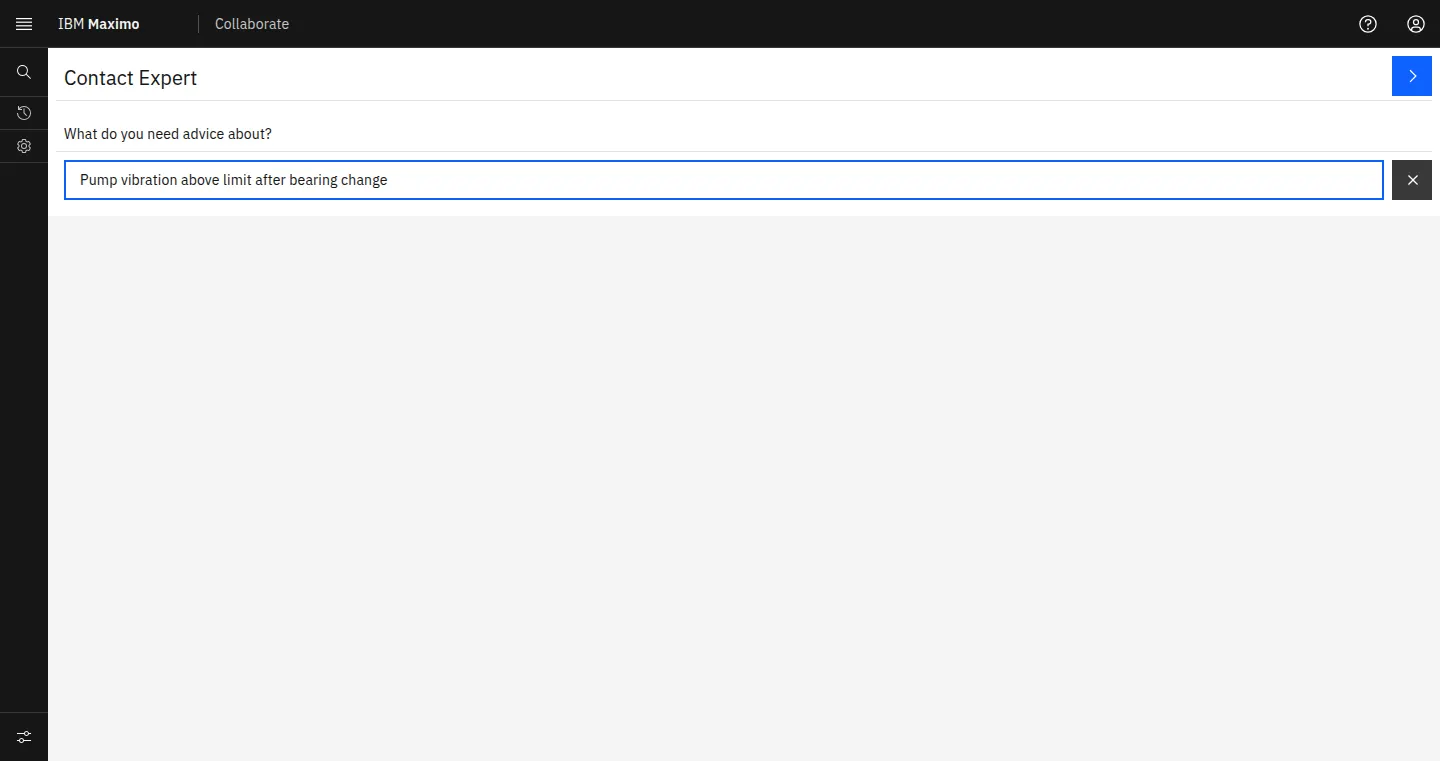
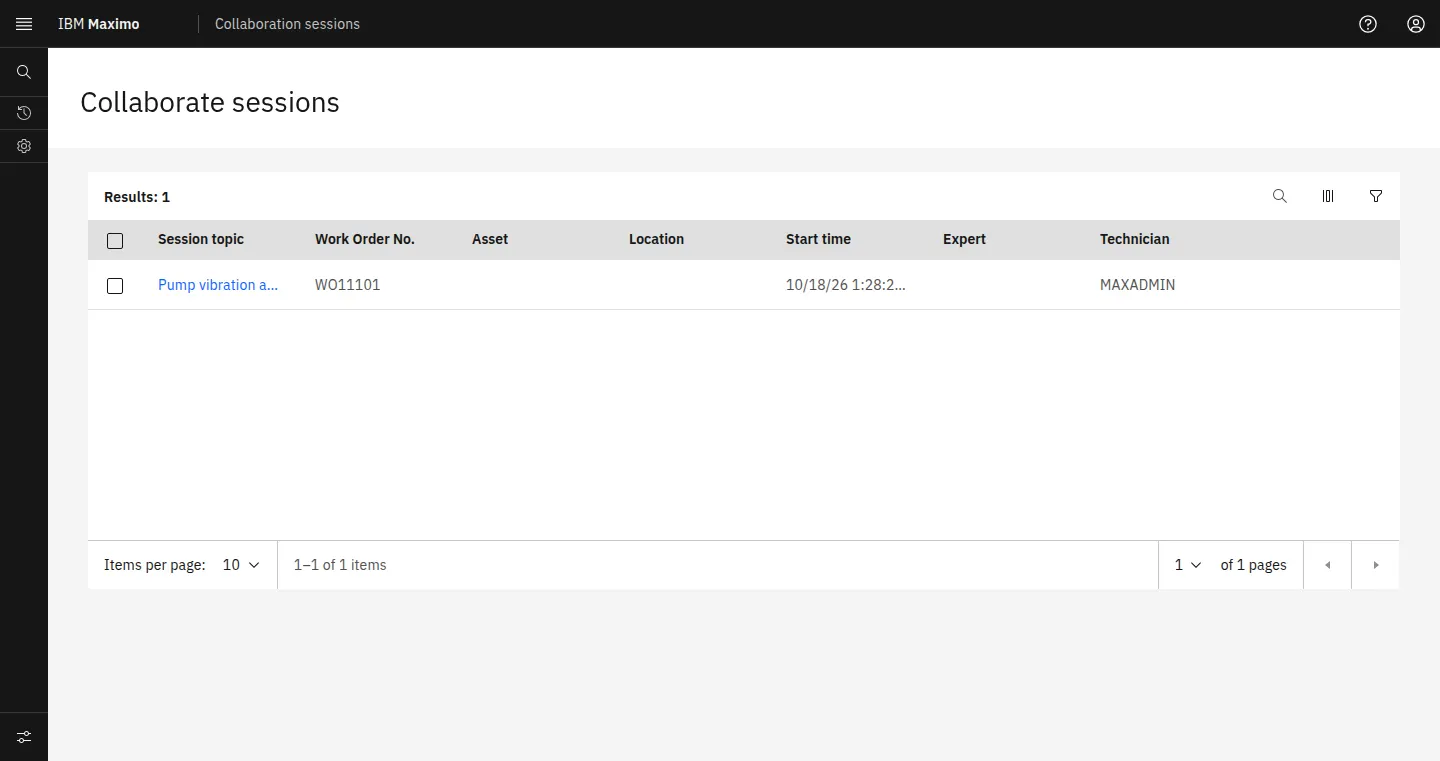
In the 9.2.38 lab: Collaborate opens on Contact Expert, "What do you need advice about?". Collab Session opens on Collaborate sessions with Session topic, Work Order No., Asset, Location, Start time, Expert and Technician columns. Mobile Configuration shows Mobile properties, Preloaded databases, Collaborate app settings and Data pre-generation.
3 · Configure users and access
Technicians need the Collaborate application. Experts need Collaborate and a place in an expert group. Supervisors need Collab Session. Administrators need the configuration screens.
Users come from MAS. Since 9.1 Collaborate keeps no users of its own, so add technicians and experts as MAS users with Manage access first, then grant the Manage security below.
The Collaborate app reads and writes through four object structures: MXAPICOLSESSION (sessions), MXAPIPERSONGROUP (expert groups), MXAPIICESERVER (ICE servers) and MXAPIMOBPROPGROUP (mobile properties). Grant them with the application options.
3.1 Grant Collaborate to technicians
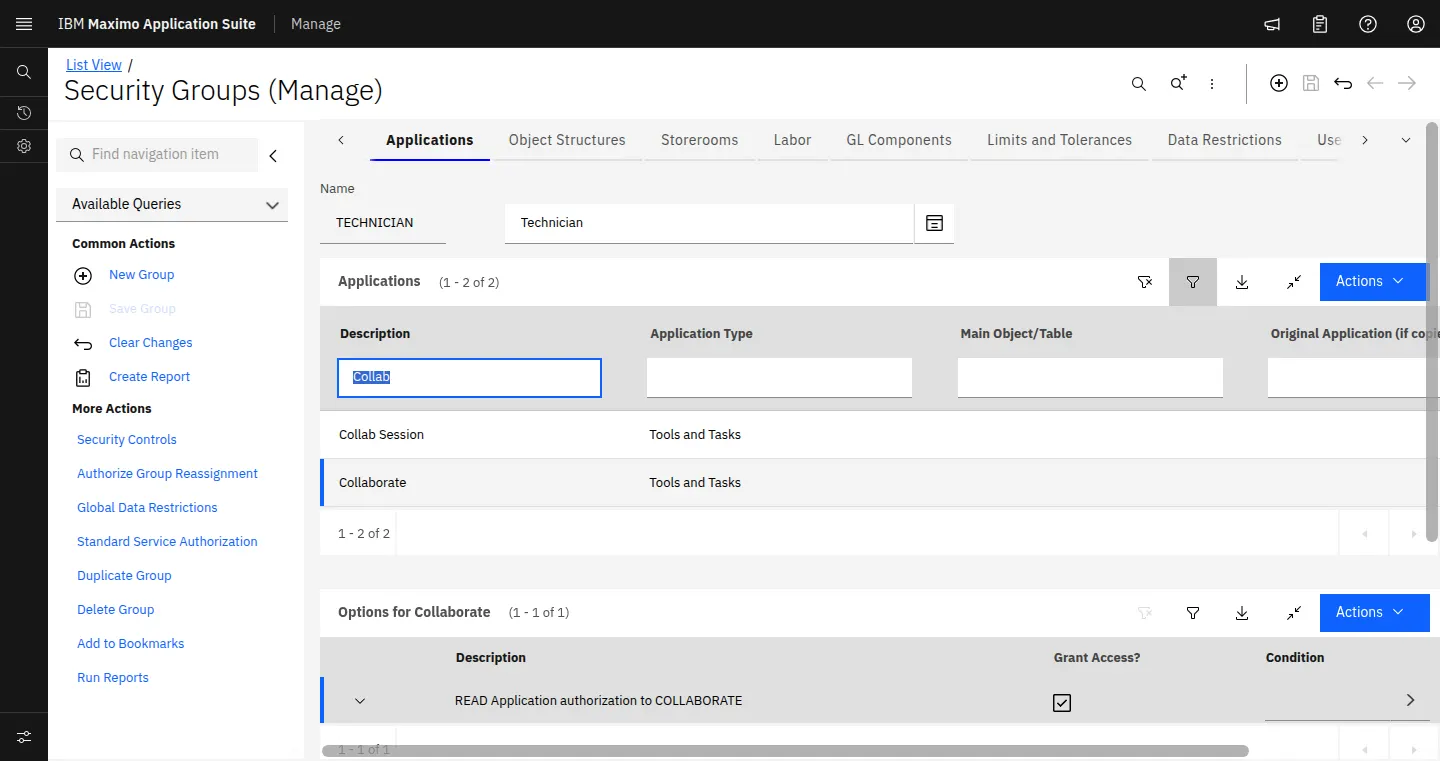
Where: Manage > Security > Security Groups > TECHNICIAN > Applications
Do this: Filter Description for "Collab". Select Collaborate and tick Grant Access? on READ Application authorization to COLLABORATE. Save Group.
Why: READ on COLLABORATE is the one option the Collaborate app checks. Without it the app is missing from the user's navigator and from Maximo Mobile.
Expected: Collaborate listed with READ ticked.
In the 9.2.38 lab: TECHNICIAN: Collab Session and Collaborate, both Tools and Tasks. Options for Collaborate: READ, Grant Access? ticked.
3.2 Grant Collab Session to supervisors
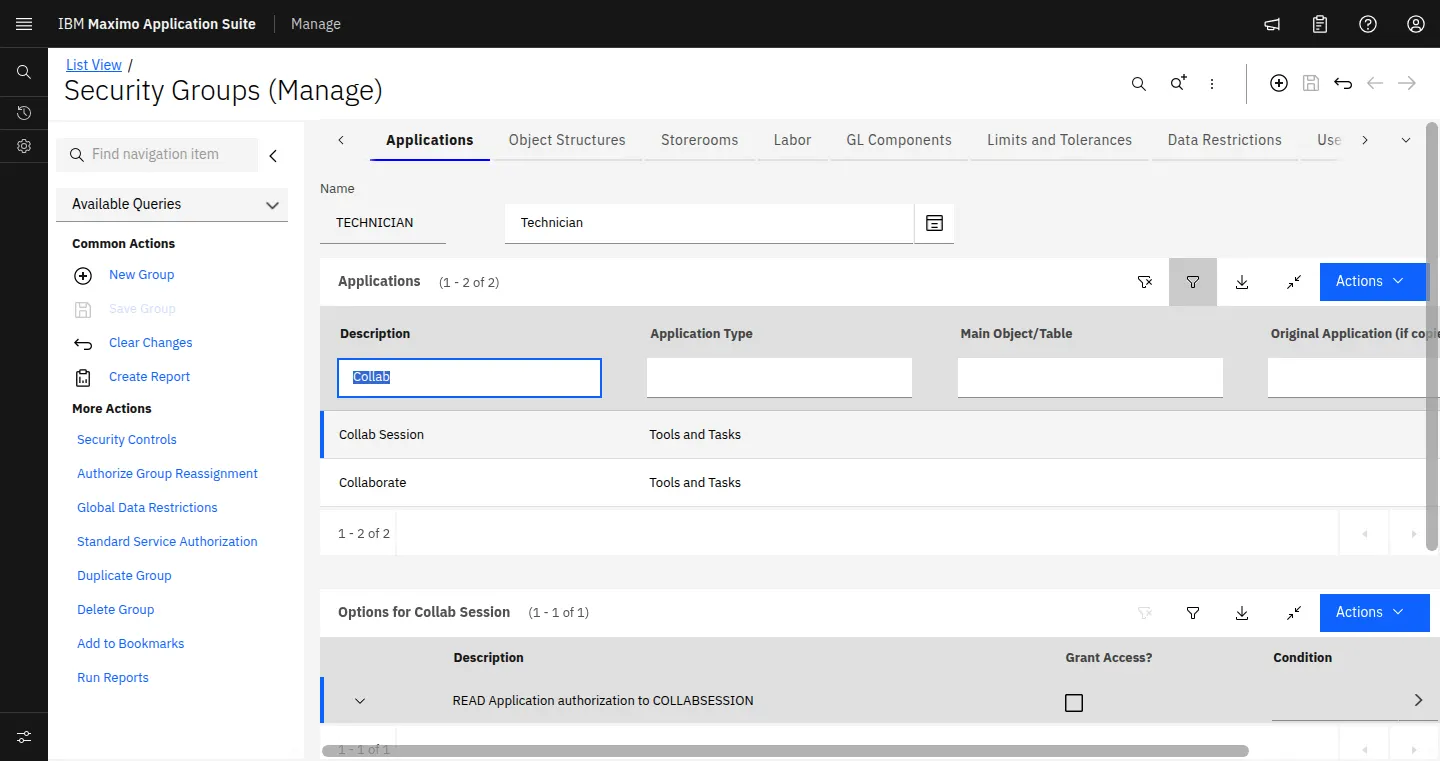
Where: Security Groups > (supervisor group) > Applications > Collab Session
Do this: Tick READ Application authorization to COLLABSESSION. The two related options, Work Order ID and Work Order Number from WORKORDER table, let the reviewer open the session's work order.
Why: Collab Session is the review screen. Give it to the people who audit sessions, not to every technician.
Expected: READ ticked for the supervisor group.
In the 9.2.38 lab: On TECHNICIAN, READ on Collab Session is clear, so technicians call and supervisors review.
3.3 Grant the object structures
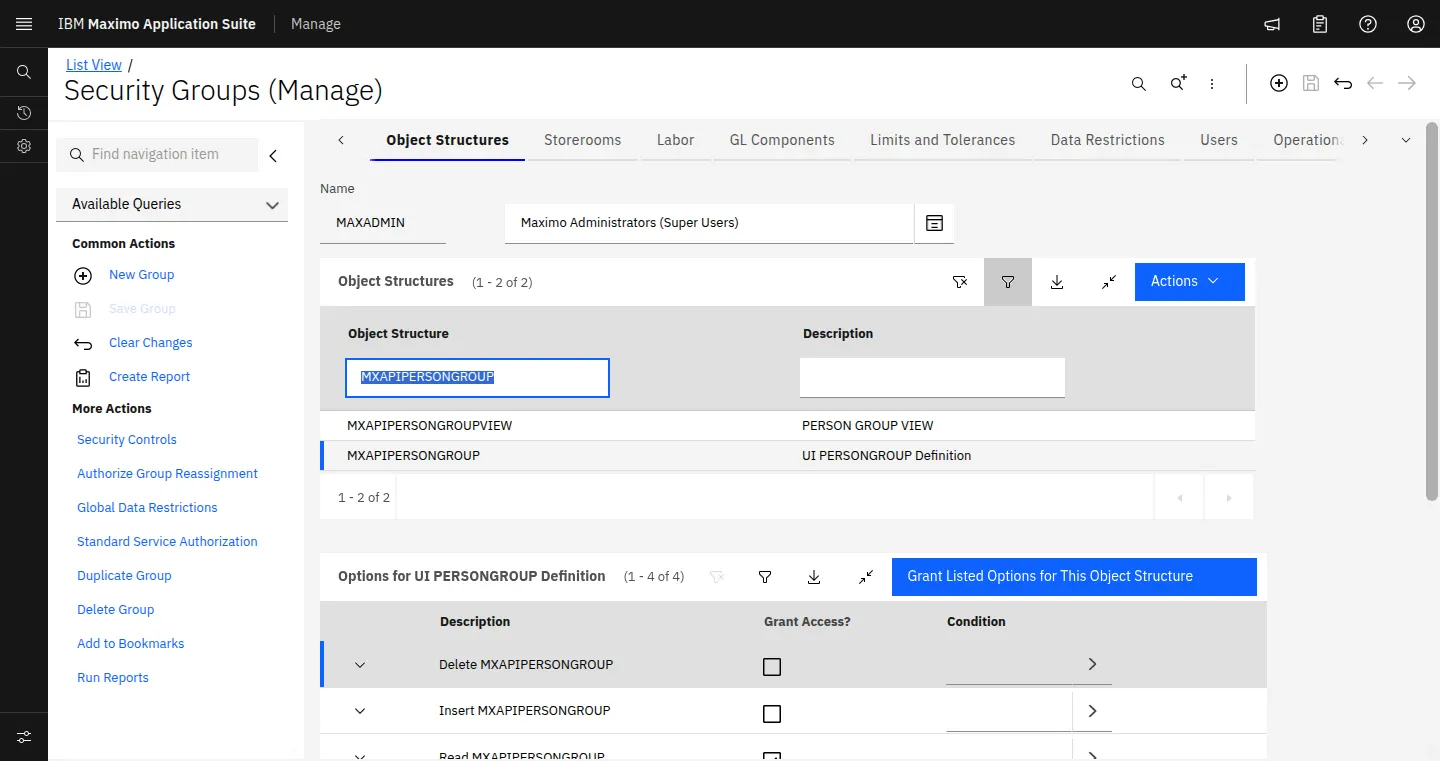
Where: Security Groups > (group) > Object Structures
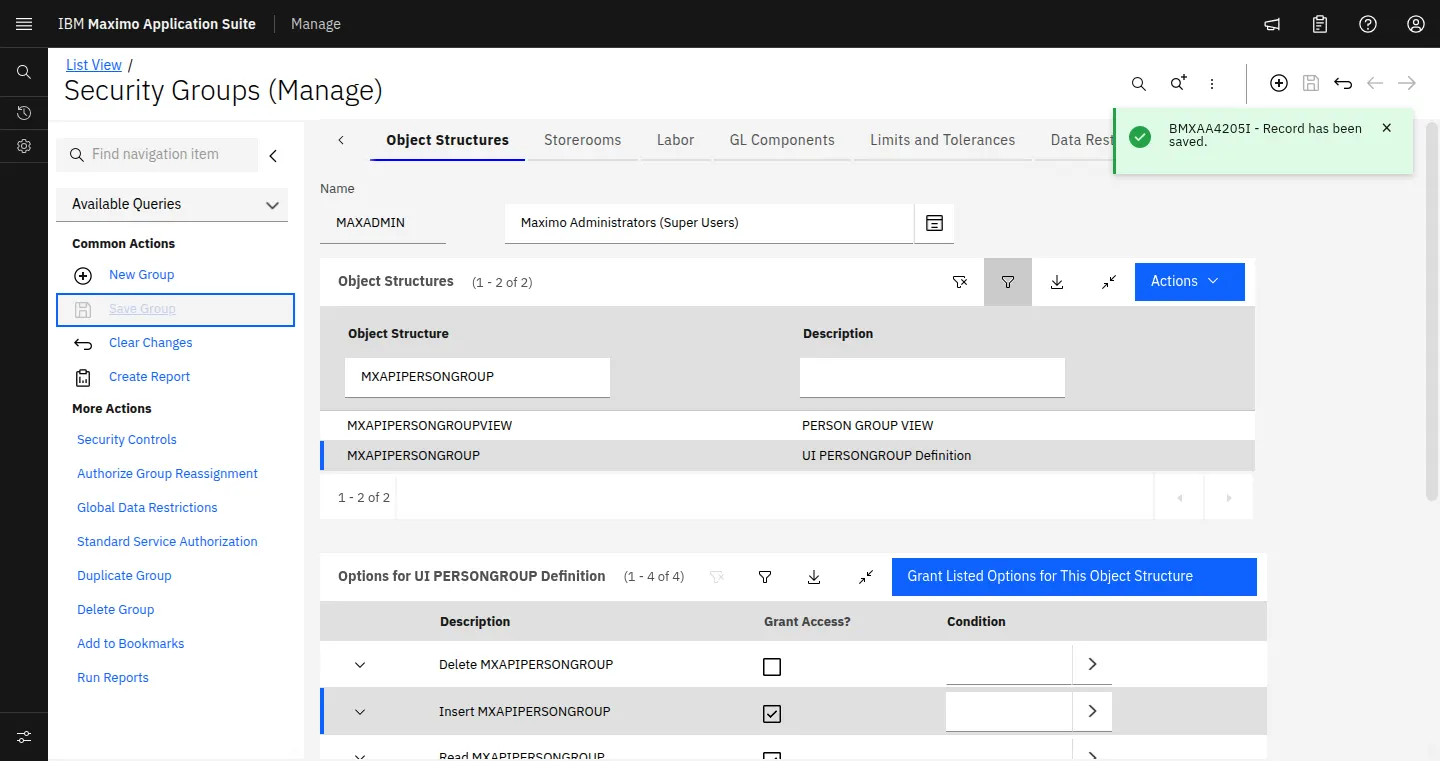
Do this: Filter Object Structure for MXAPIPERSONGROUP. Tick Grant Access? on Insert and Save (Read is usually there already). Repeat for MXAPICOLSESSION for technicians and experts. Save Group.
Why: The expert-group flag and the session records are written through these structures. Read alone lets a user see experts but not save a group or a session.
Expected: BMXAA4205I Record has been saved.
In the 9.2.38 lab: MAXADMIN started with Read only on MXAPIPERSONGROUP (and full rights on MXAPICOLSESSION, MXAPIICESERVER, MXAPIMOBPROPGROUP). Insert and Save were ticked and saved (BMXAA4205I). The new rights took effect once the security profile refreshed, about a minute; signed-in users pick them up at their next sign-in.
3.4 Create the expert group
Where: Manage > Administration > Resources > Person Groups
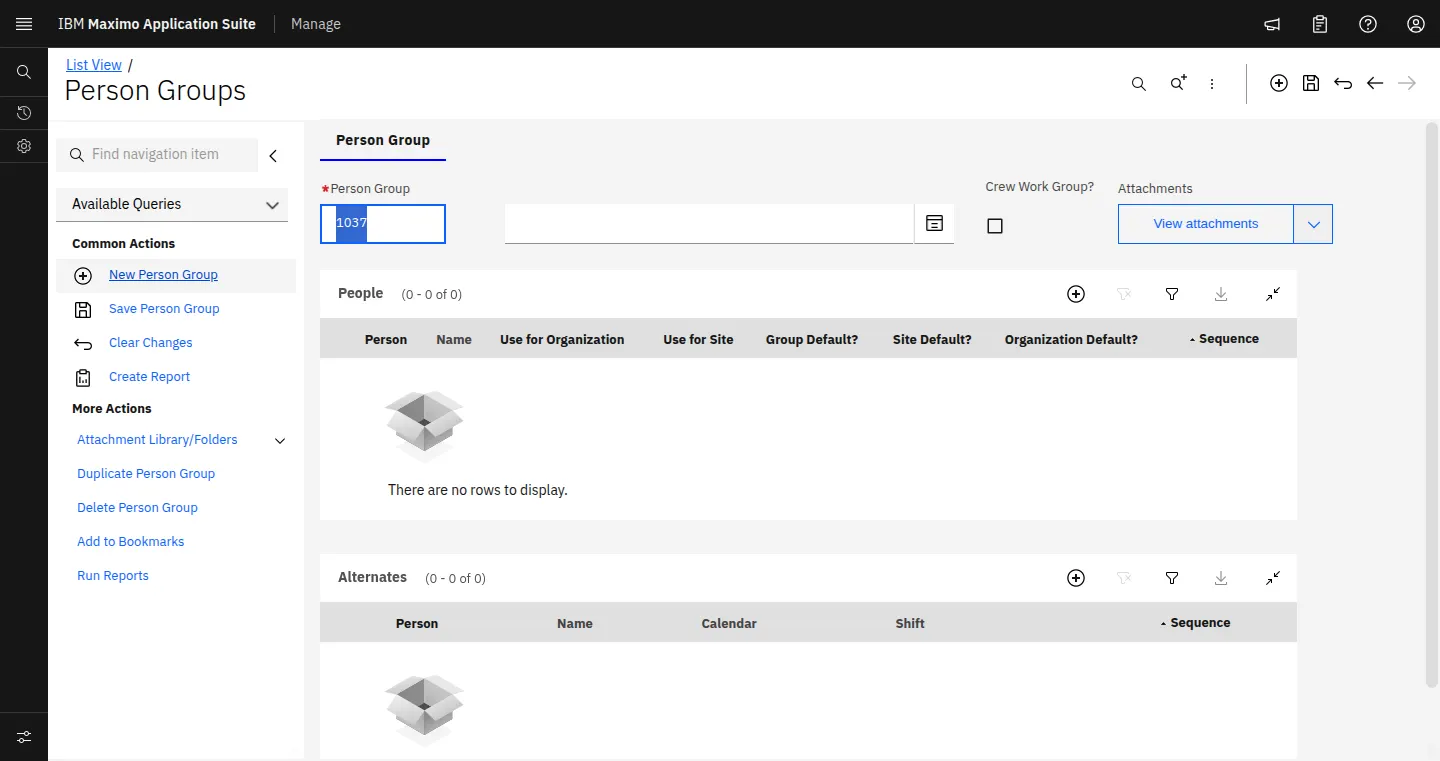
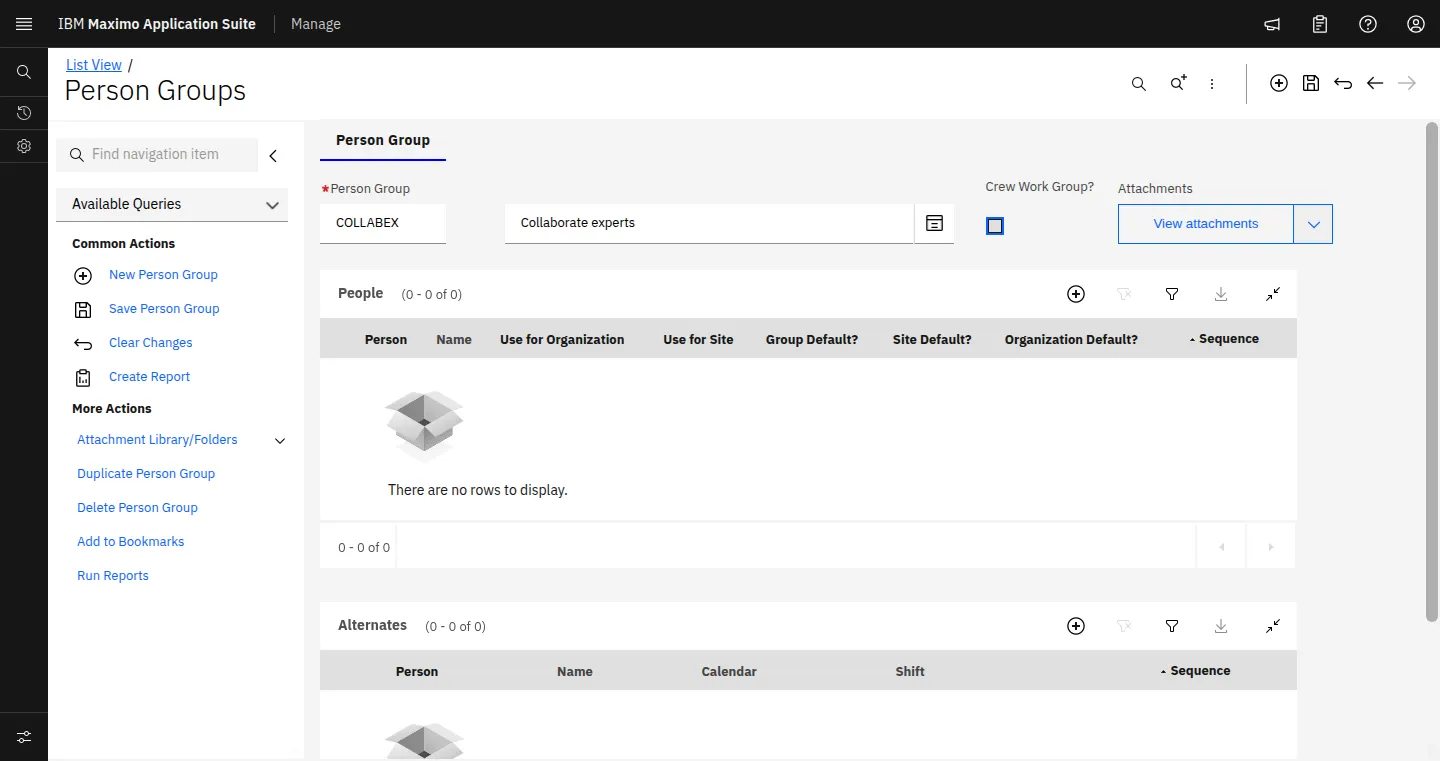
Do this: Common Actions > New Person Group. Person Group: an 8-character name for the expertise (EXPERTS, PUMPS, HVAC). Description: the skill as the technician reads it. Leave Crew Work Group? clear. Save Person Group.
Why: Collaborate lists experts from person groups with Is expert group set (saved query PERSONISEXPERT, "Person groups with is expert group checkbox checked"). One group per expertise area keeps the list short for the technician.
Expected: The group saves and its key turns read-only.
In the 9.2.38 lab: Saved as EXPERTS, "Collaborate experts". The Person Group field holds 8 characters, so COLLABEXP became COLLABEX before it was renamed.
3.5 Add the experts and set Is expert group
Where: Person Groups > EXPERTS > People
Do this: New Row in People. Person: the expert's person record. Set Group Default? on the first responder and a Sequence for the rest. Tick Is expert group. Save. Where your Person Groups screen has no Is expert group box, add it in Application Designer: open PERSONGR, select the Person Group section, add a Check Box bound to ISEXPERTGROUP with the label Is expert group, save the definition, then tick it on the group.
Why: Every member of an expert group is a candidate expert. The flag is what puts the group in front of the technician.
Expected: A People row per expert; the group appears in the PERSONISEXPERT saved query.
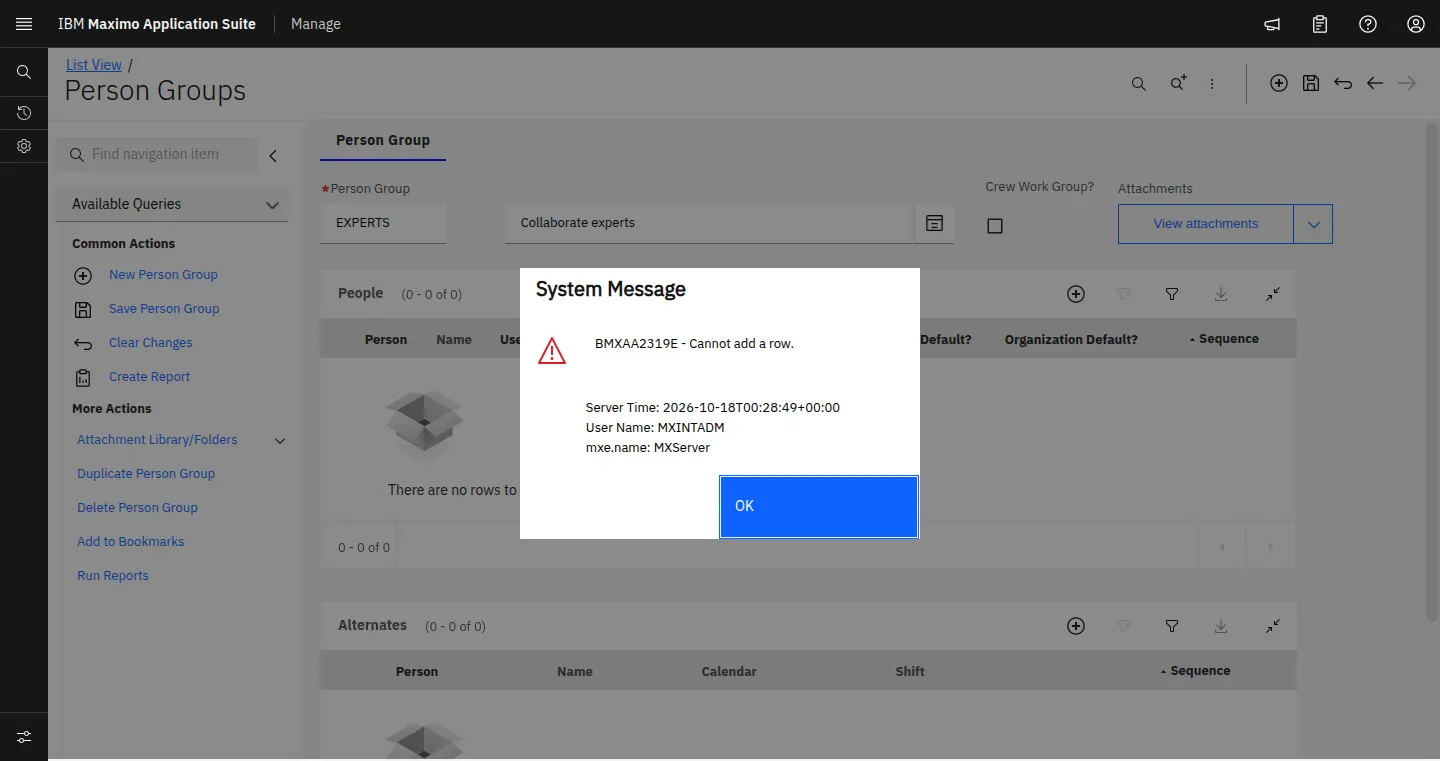
In the 9.2.38 lab: The 9.2.38 Person Groups screen shows Person Group, Description, Crew Work Group?, Attachments, People and Alternates. The People table answered "BMXAA2319E - Cannot add a row." See Troubleshoot.
3.6 Sign in as each role
Where: Collaborate, as a technician and as an expert, each in their own session
Do this: Sign in as the technician and open Collaborate. Sign in as the expert on a second device or browser and open Collaborate.
Why: Proves both users have the application before you test the call, so a later failure is connectivity, not access.
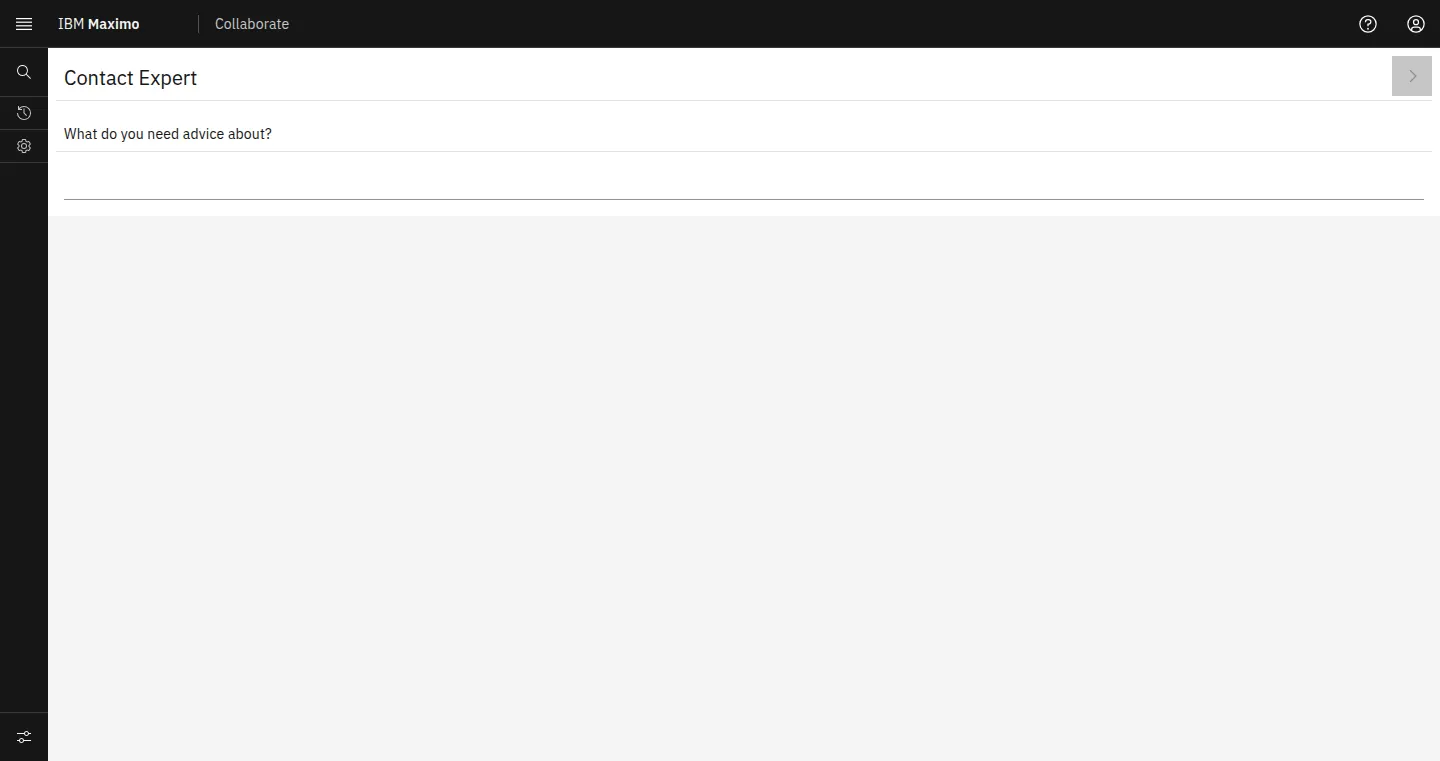
Expected: Both reach Contact Expert. The expert's session identifies the expert.
In the 9.2.38 lab: The technician opened Collaborate from the MAS navigator and reached Contact Expert, "What do you need advice about?".
4 · Configure collaboration connectivity
A call needs two connections: the signalling WebSocket to the Collaborate service, and a media path between the two devices that your ICE servers find.
STUN tells each device its public address so the two can talk directly. TURN relays the media when a firewall or carrier network blocks the direct path. IBM's minimum is one STUN server and one TURN server. Plan on TURN for every field rollout: plant networks and mobile carriers often block direct paths.
Signalling: each device opens a WebSocket (socket.io) to the Collaborate service. With subdomain routing the host is <workspace>-collaborate.<your MAS domain>; with path-based routing it is <your Manage host>/manage/collaborate (path-based routing arrived in Collaborate 9.2.48). Allow WebSocket upgrades through every proxy between devices and MAS.
Media: allow outbound UDP and TCP to your TURN server, usually 3478 (STUN and TURN) and 5349 or 443 (TURN over TLS), plus the relay port range your TURN server uses. IBM's bandwidth figures: technician 500 Kbps out and 100 Kbps in, expert 100 Kbps out and 500 Kbps in.
Credentials: Collaborate hands the TURN username and password to each participant's device to open the relay. Use relay credentials made for this purpose, never an account password. coturn with a shared secret and a TTL, or Twilio and Xirsys tokens, give short-lived credentials. Password and Secret are stored encrypted (CRYPTOX) and masked on screen.
Test it: from a technician's network, open the WebRTC Trickle ICE sample (webrtc.github.io/samples), enter your STUN and TURN URLs with the TURN credentials, and gather candidates. A srflx candidate proves STUN; a relay candidate proves TURN.
4.1 Open Collaborate app settings
Where: Manage > Application Administration > Mobile Configuration > Collaborate app settings
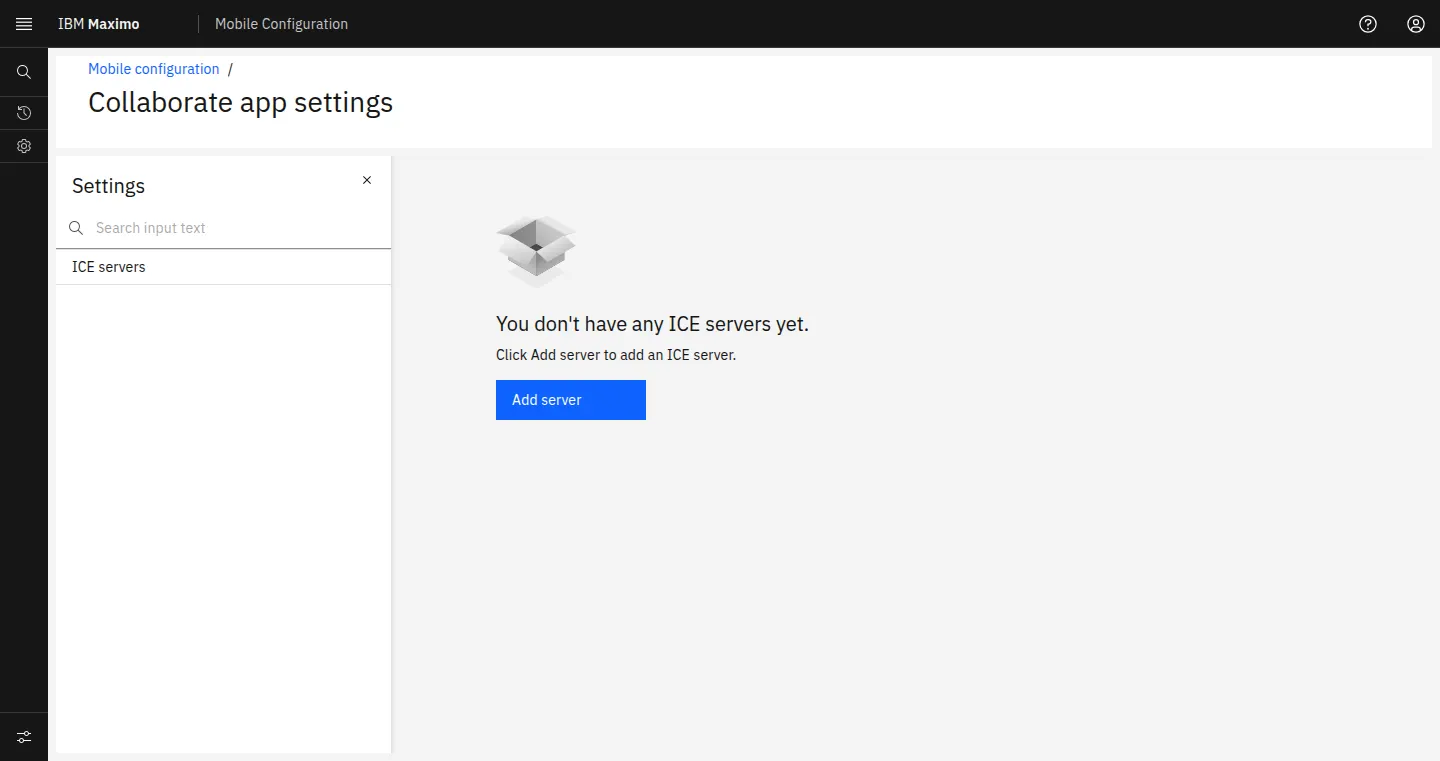
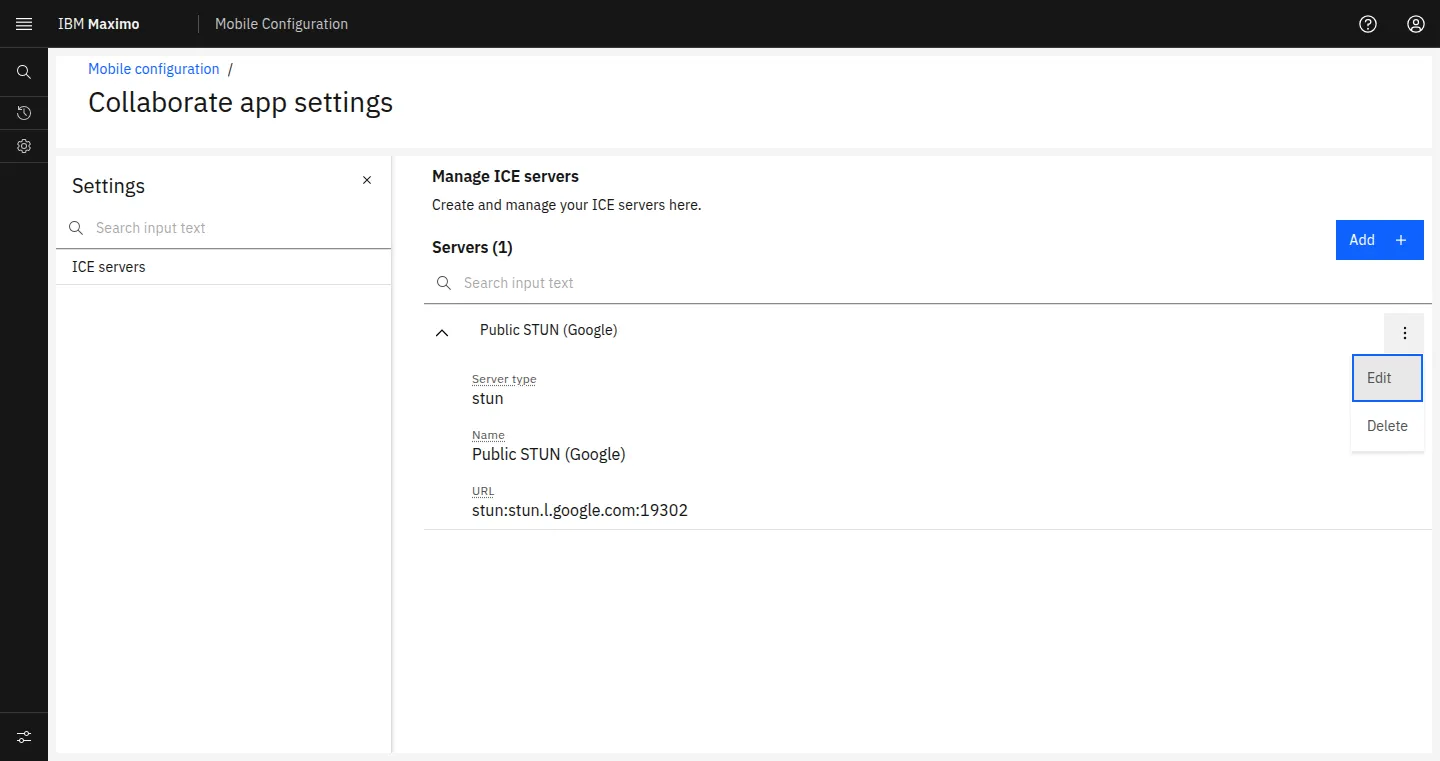
Do this: Select the Collaborate app settings tile, then ICE servers. With no server yet, press Add server.
Why: In 9.2 the ICE servers moved here from the old standalone Collaborate studio.
Expected: Settings rail with ICE servers.
In the 9.2.38 lab: "You don't have any ICE servers yet. Click Add server to add an ICE server." with an Add server button.
4.2 Choose the server type
Where: Add server > Server type
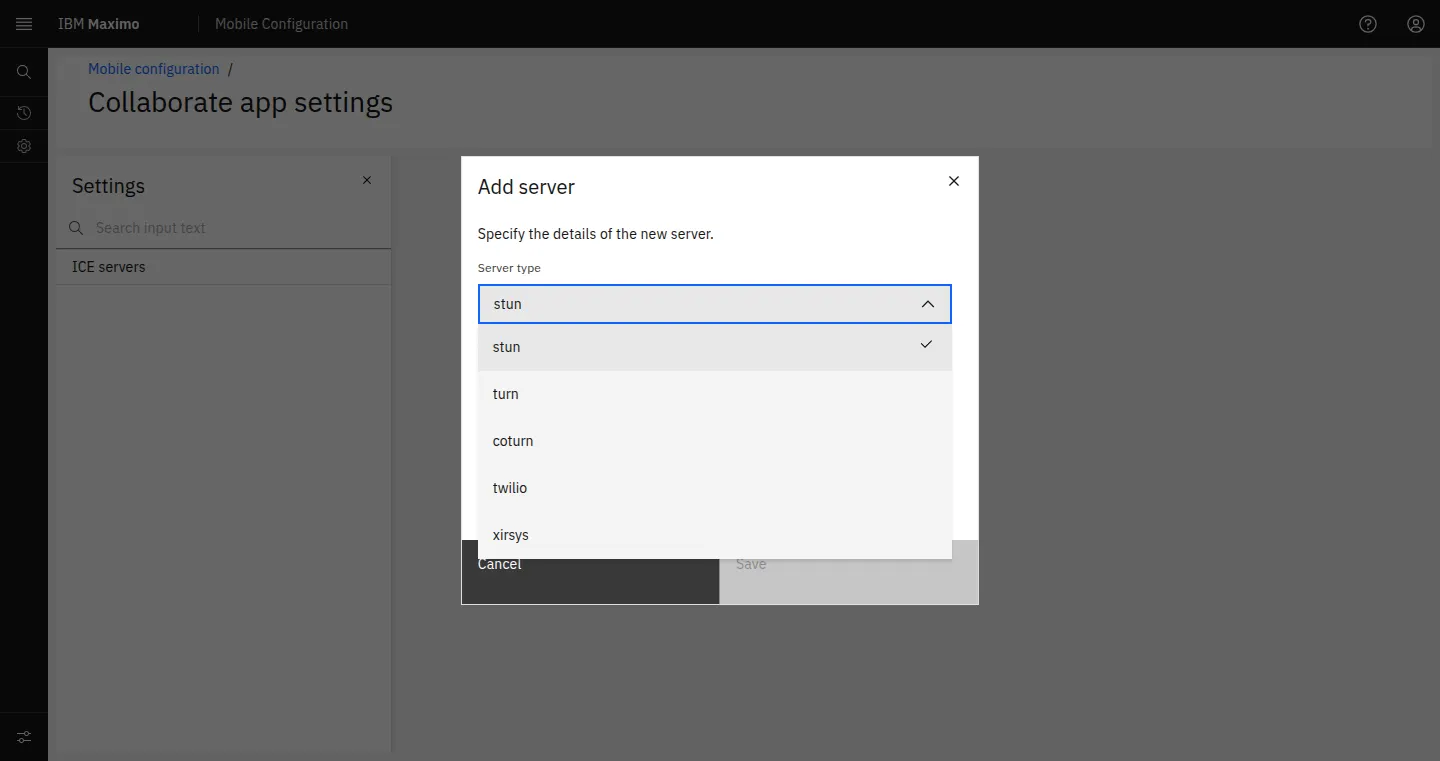
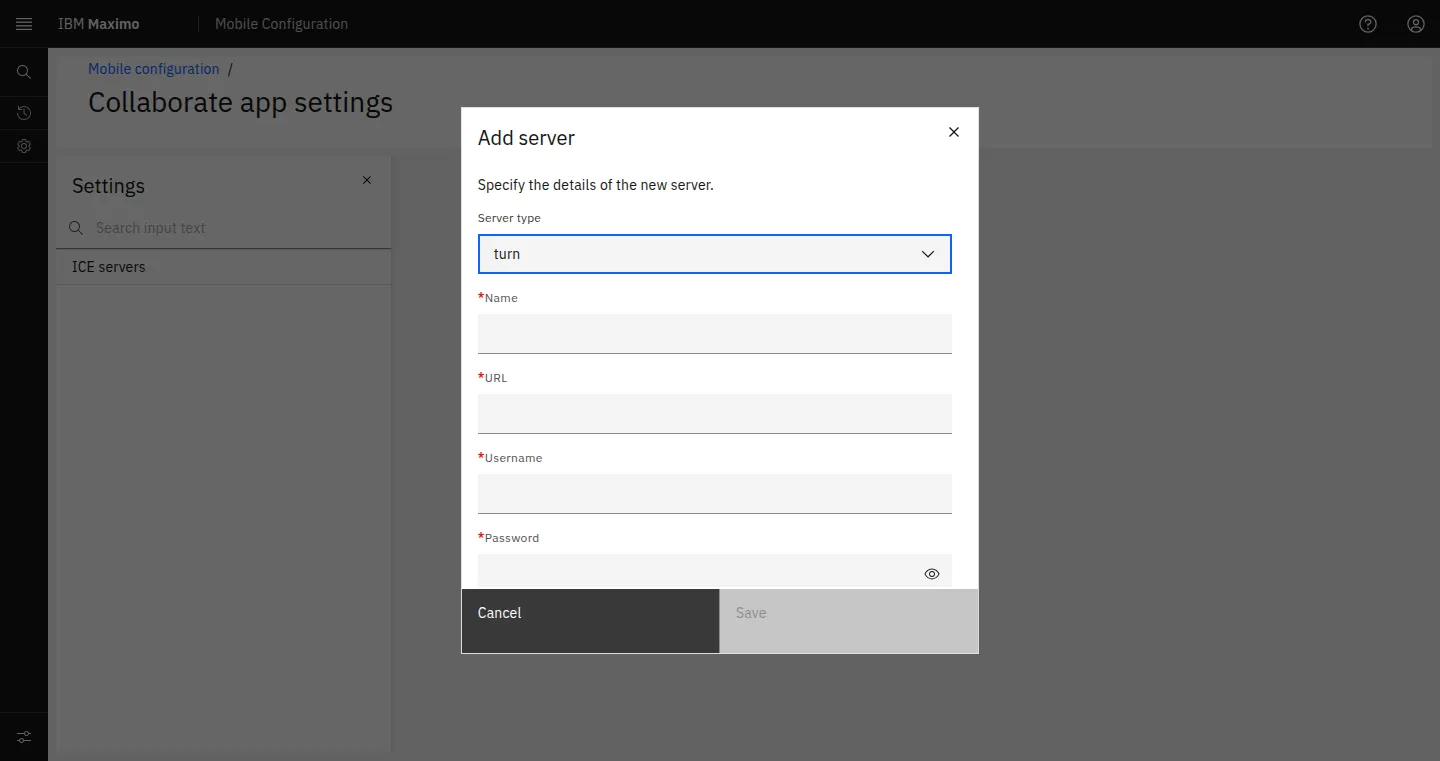
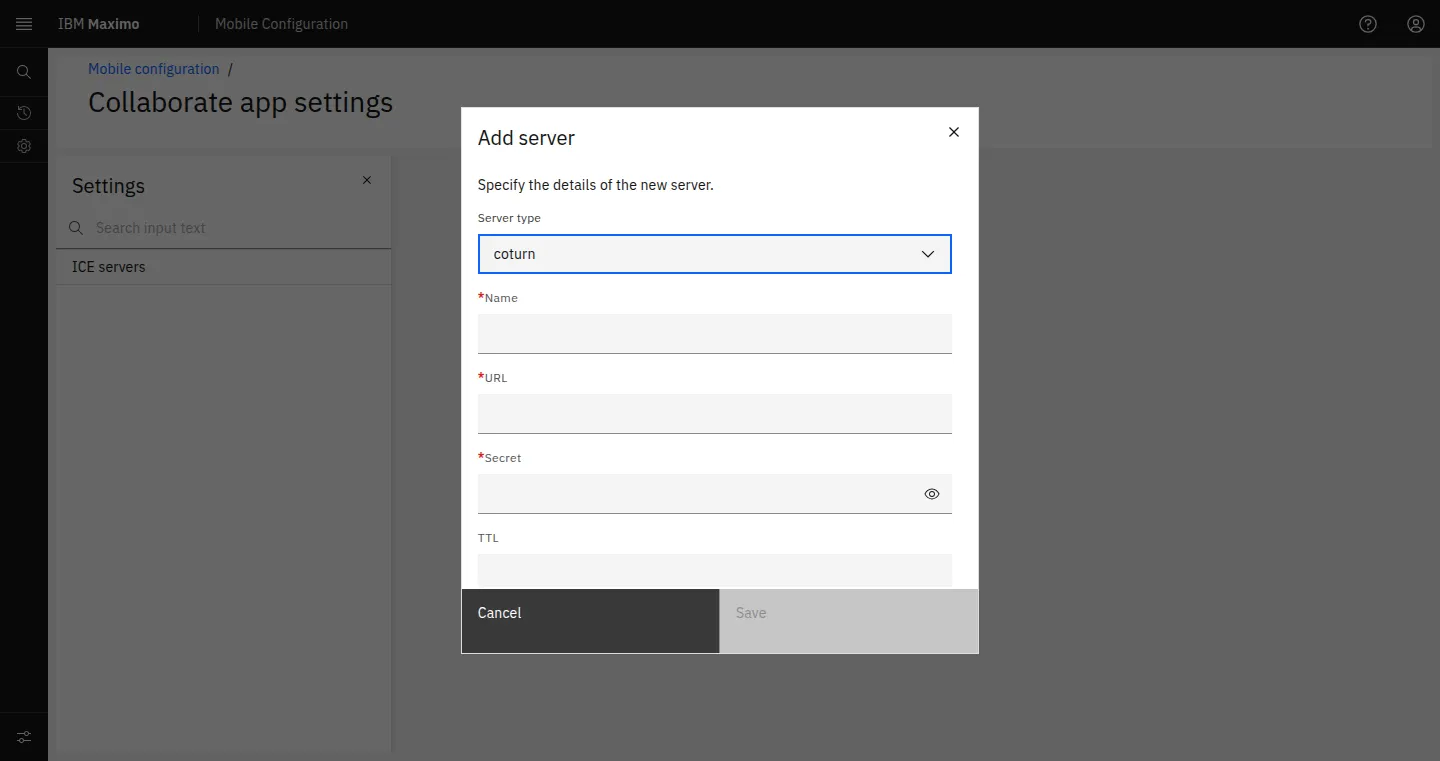
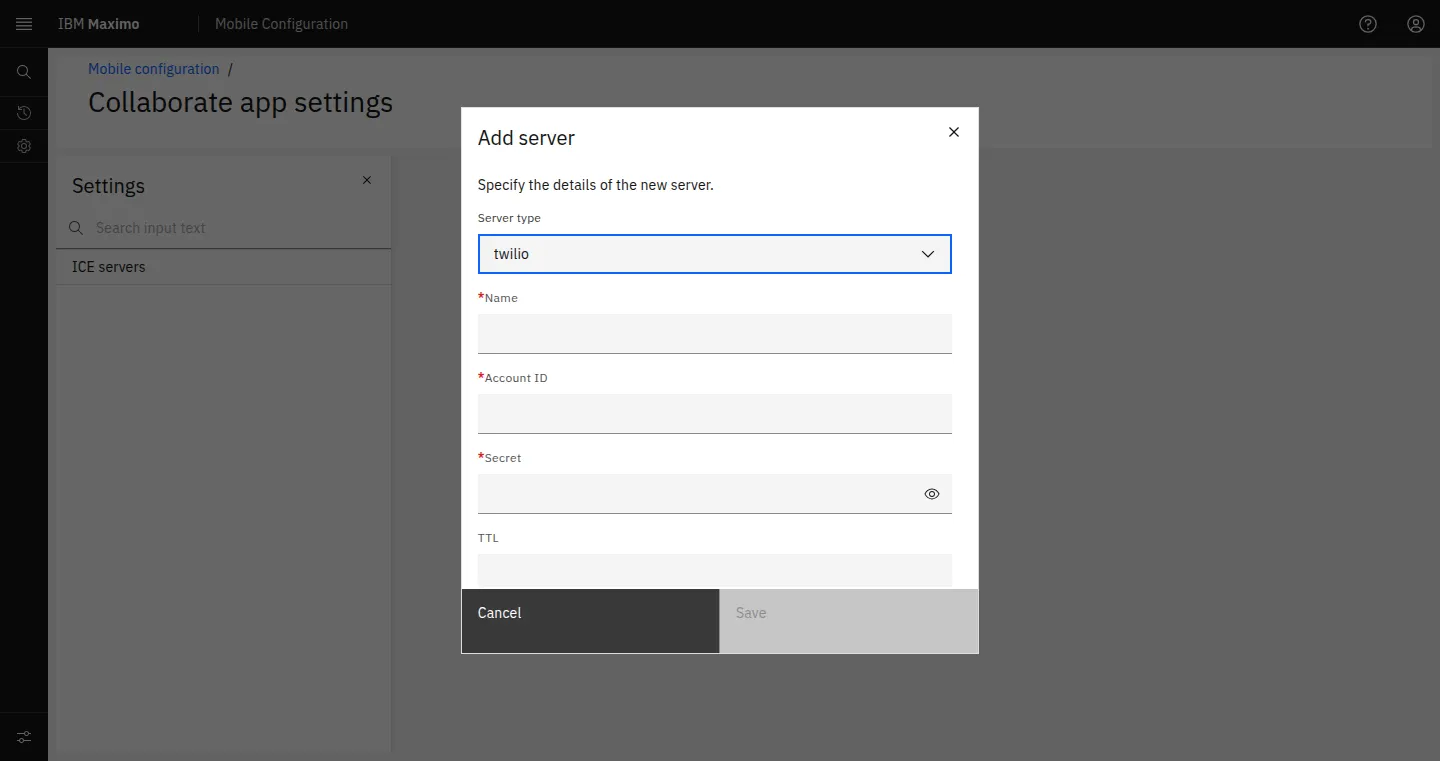
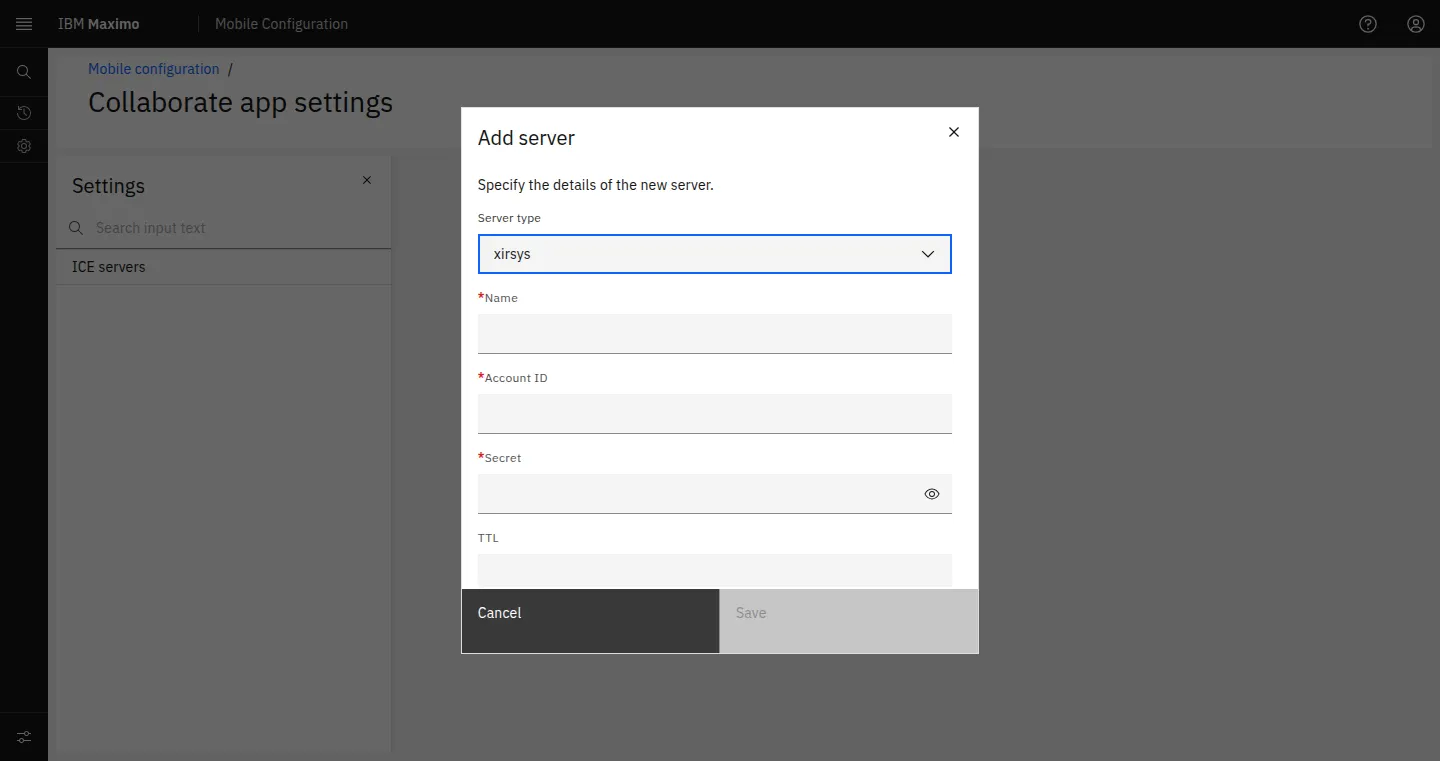
Do this: Open Server type. Pick stun for discovery, turn for a relay with a fixed username and password, coturn for a coturn relay with a shared secret, twilio or xirsys for those hosted services.
Why: The type decides which fields the dialog asks for.
Expected: Five types.
In the 9.2.38 lab: stun, turn, coturn, twilio, xirsys. stun asks Name and URL. turn adds Username and Password. coturn asks URL, Secret and TTL. twilio and xirsys ask Account ID, Secret and TTL.
4.3 Add the STUN server
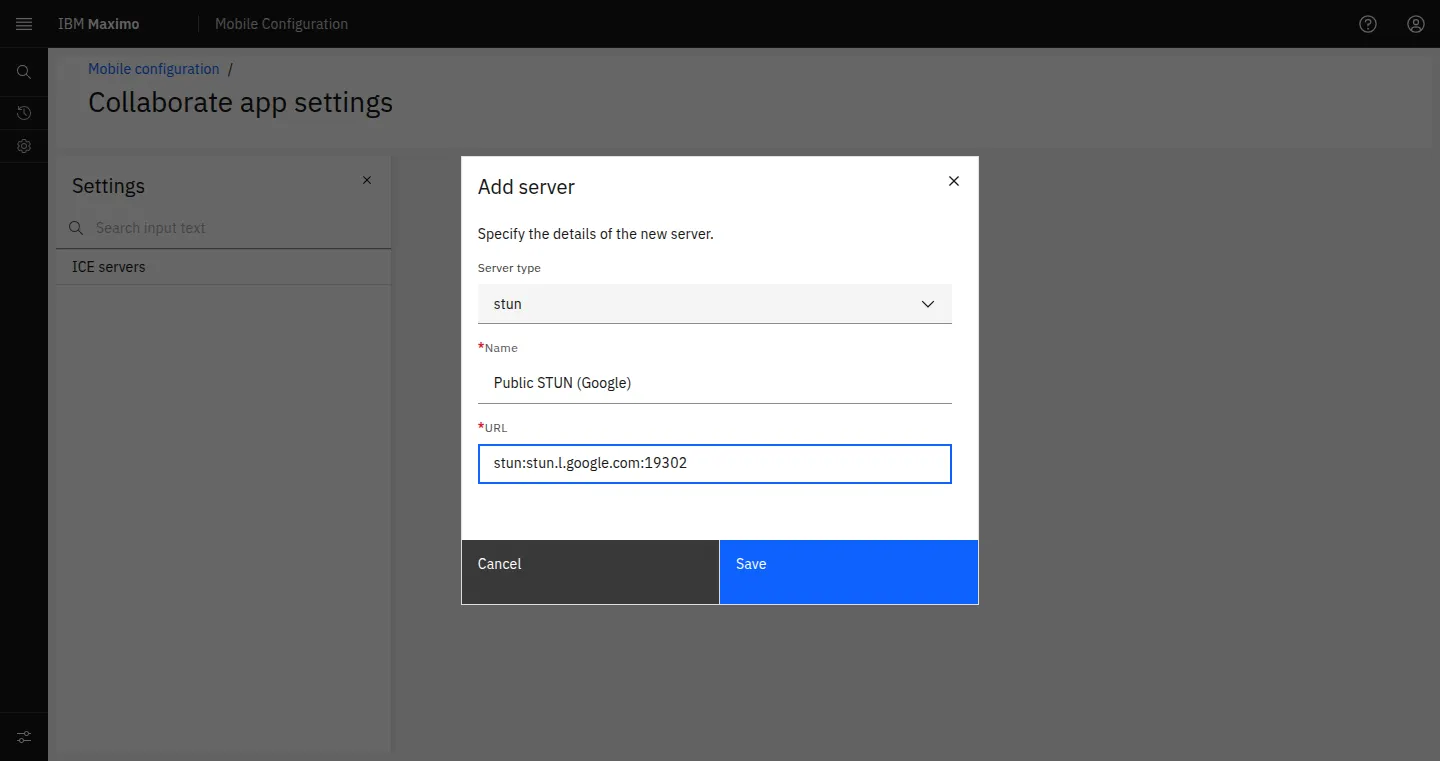
Where: Add server, Server type stun
Do this: Name: Public STUN (Google). URL: stun:stun.l.google.com:19302. Save.
Why: STUN is the cheapest way to connect two devices on open networks.
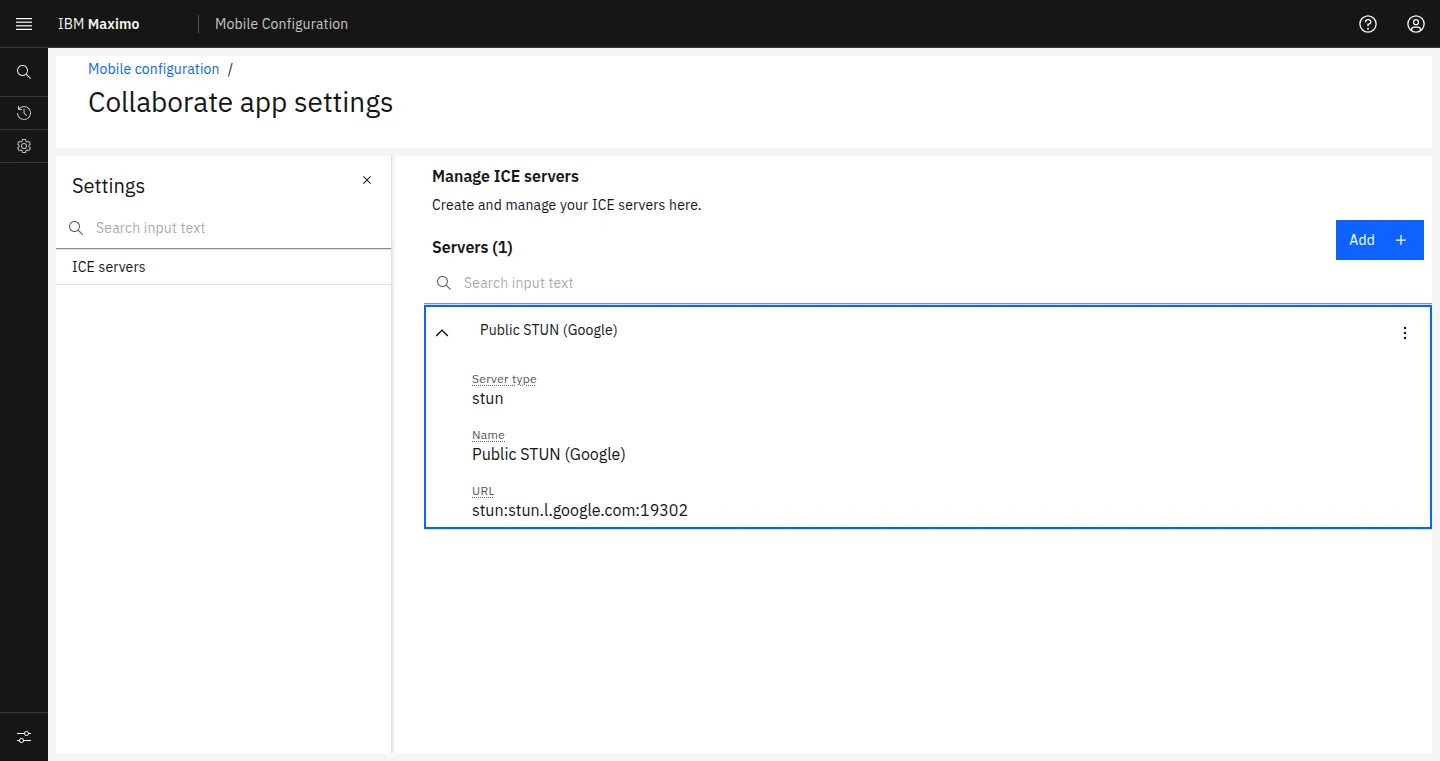
Expected: Servers (1) with the new row.
In the 9.2.38 lab: Servers (1): Public STUN (Google). Expanded: Server type stun, Name, URL.
4.4 Add the TURN server
Where: Manage ICE servers > Add
Do this: Server type turn (fixed credentials) or coturn (shared secret). URL: turn:turn.example.com:3478?transport=udp. Add a second row for turns:turn.example.com:443?transport=tcp so the relay also works where only HTTPS leaves the network. Enter the relay username and password, or the coturn secret and a TTL in seconds (3600 is common). Save.
Why: TURN is what makes calls work from plant floors, VPNs and carrier networks.
Expected: Servers (2) or more; the dialog masks Password and Secret.
In the 9.2.38 lab: The dialog shows the eye control on Password and Secret and stores both encrypted. Use your own relay host and credentials here.
5 · Configure notifications
Push carries three things in Collaborate: which experts are online, the invitation to the expert, and the link that opens the expert's accept screen.
When the technician asks for help, Collaborate sends the expert-group members to the MAS push service, which answers who is online. Only online experts are listed. When the technician picks one, the push service delivers "Technician has invited you to join a collaborate session." with a link that opens the accept screen for that session in Maximo Mobile.
Dependencies: an API key from IBM's push service (sign in with your IBM ID at pushnotification.suite.maximo.com/pushnotification/auth), Maximo Mobile on each expert's and technician's device, signed in, with notifications allowed. IBM notes users receive push only while their Manage session is active.
Android (Firebase Cloud Messaging): allow oauth2.googleapis.com, fcm.googleapis.com and firebaseinstallations.googleapis.com on 443. iOS (Apple Push Notification service): allow api.push.apple.com on 443. Allow your MAS cluster to reach pushnotification.suite.maximo.com on 443.
Everything else is in place without push: ICE servers, expert groups, security, session records and history. Push is the step that lets an expert be found and reached.
5.1 Open Push Notification
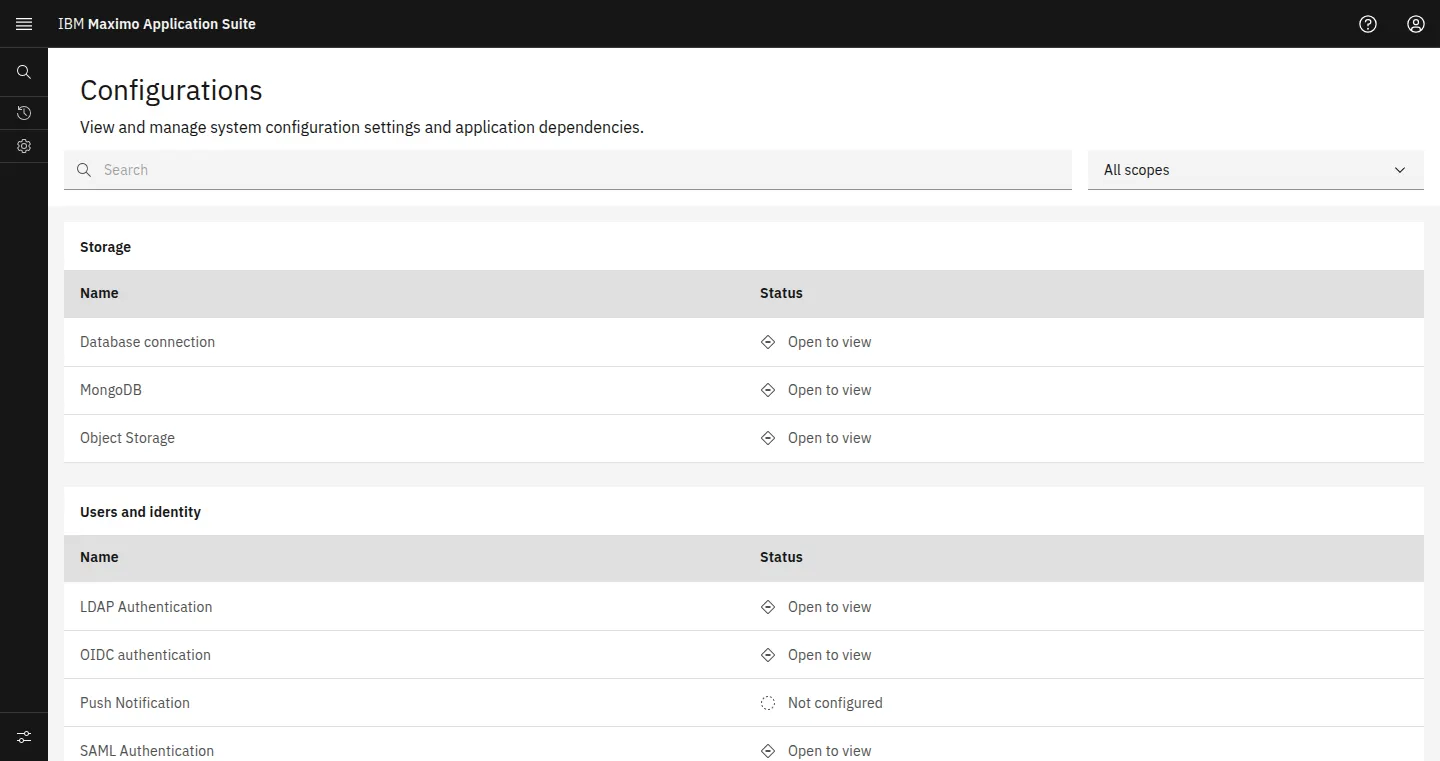
Where: MAS Administration > Configurations > Users and identity > Push Notification
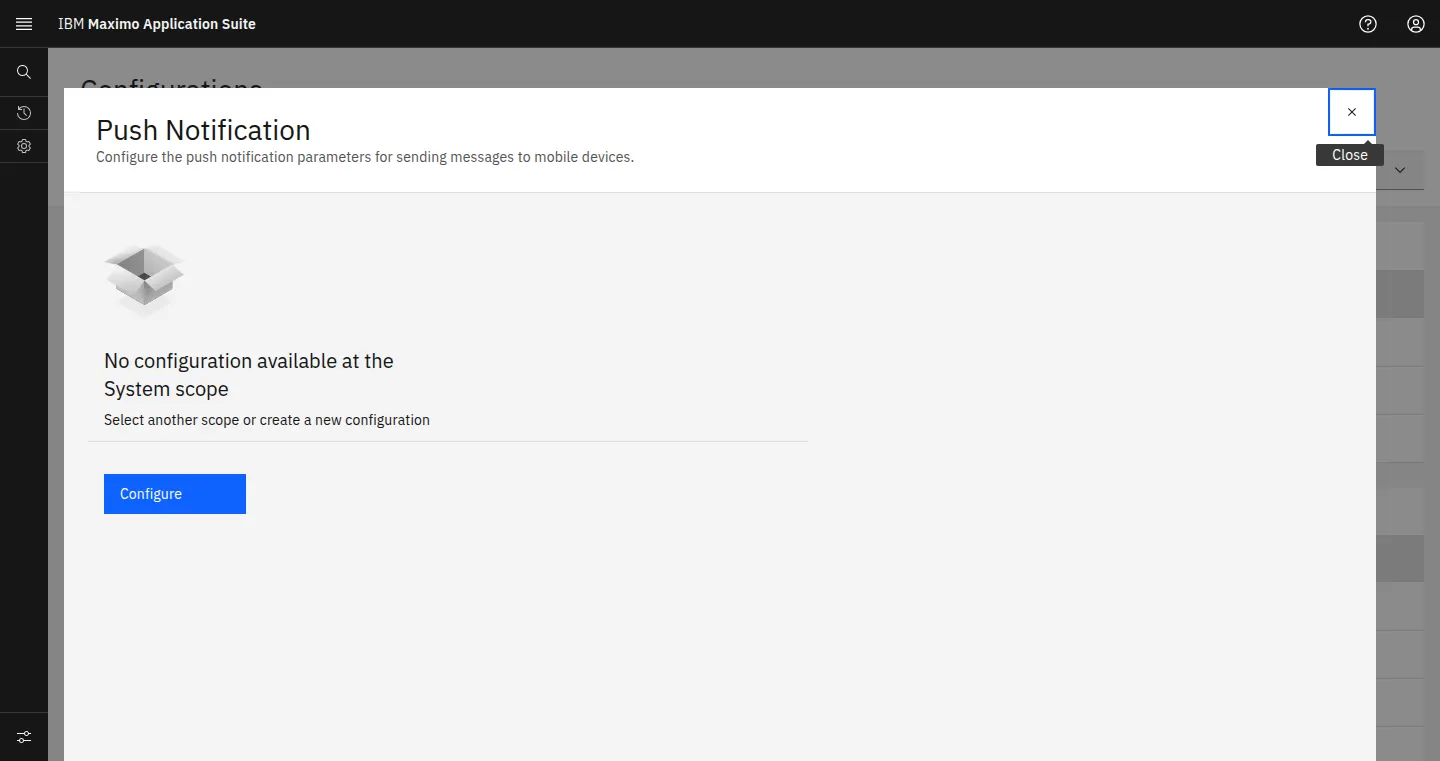
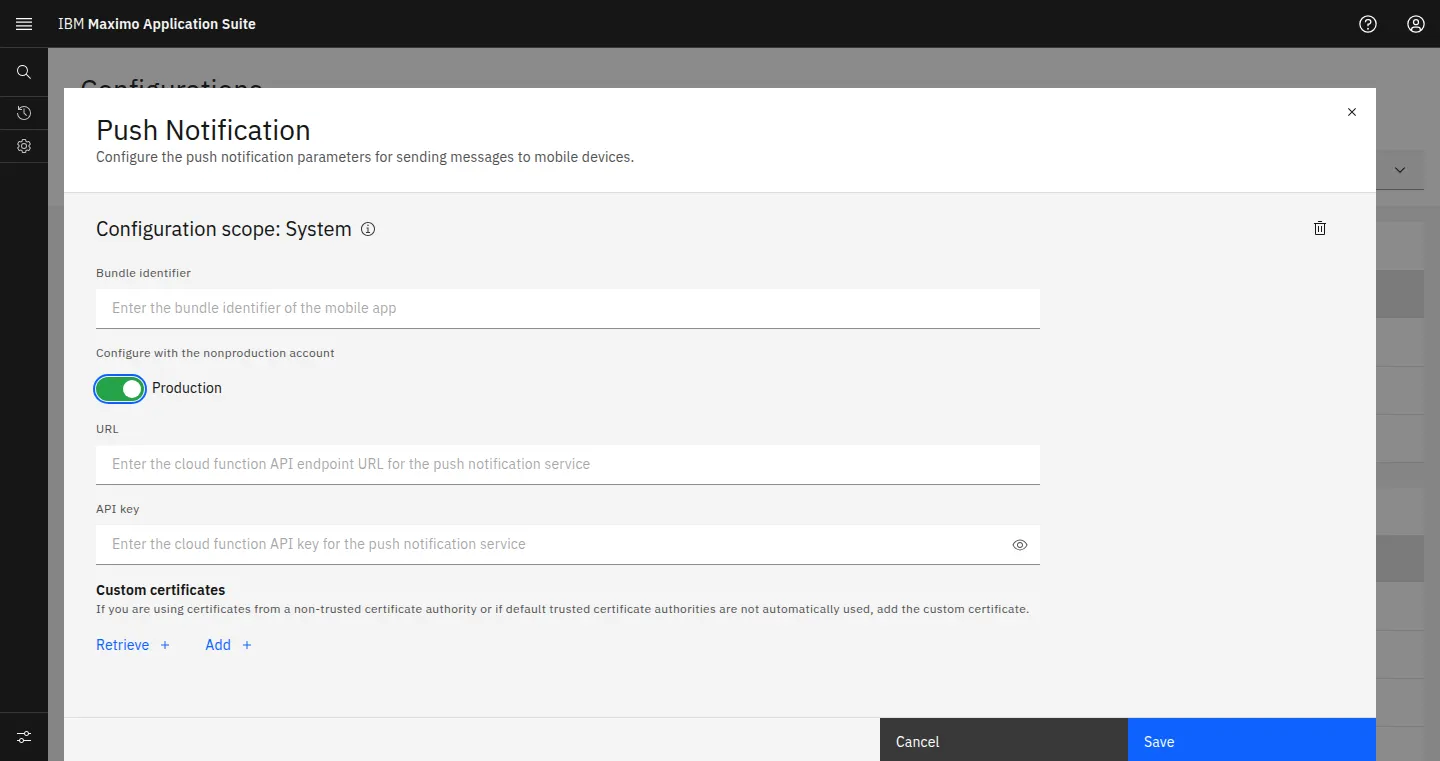
Do this: Select Push Notification. At System scope with nothing saved, press Configure.
Why: Push is a MAS-level configuration shared by every Maximo Mobile app, Collaborate included.
Expected: Push Notification panel at System scope.
In the 9.2.38 lab: Configurations lists Push Notification with status "Not configured". The panel reads "No configuration available at the System scope" with a Configure button.
5.2 Enter the push service details
Where: Push Notification > Configure
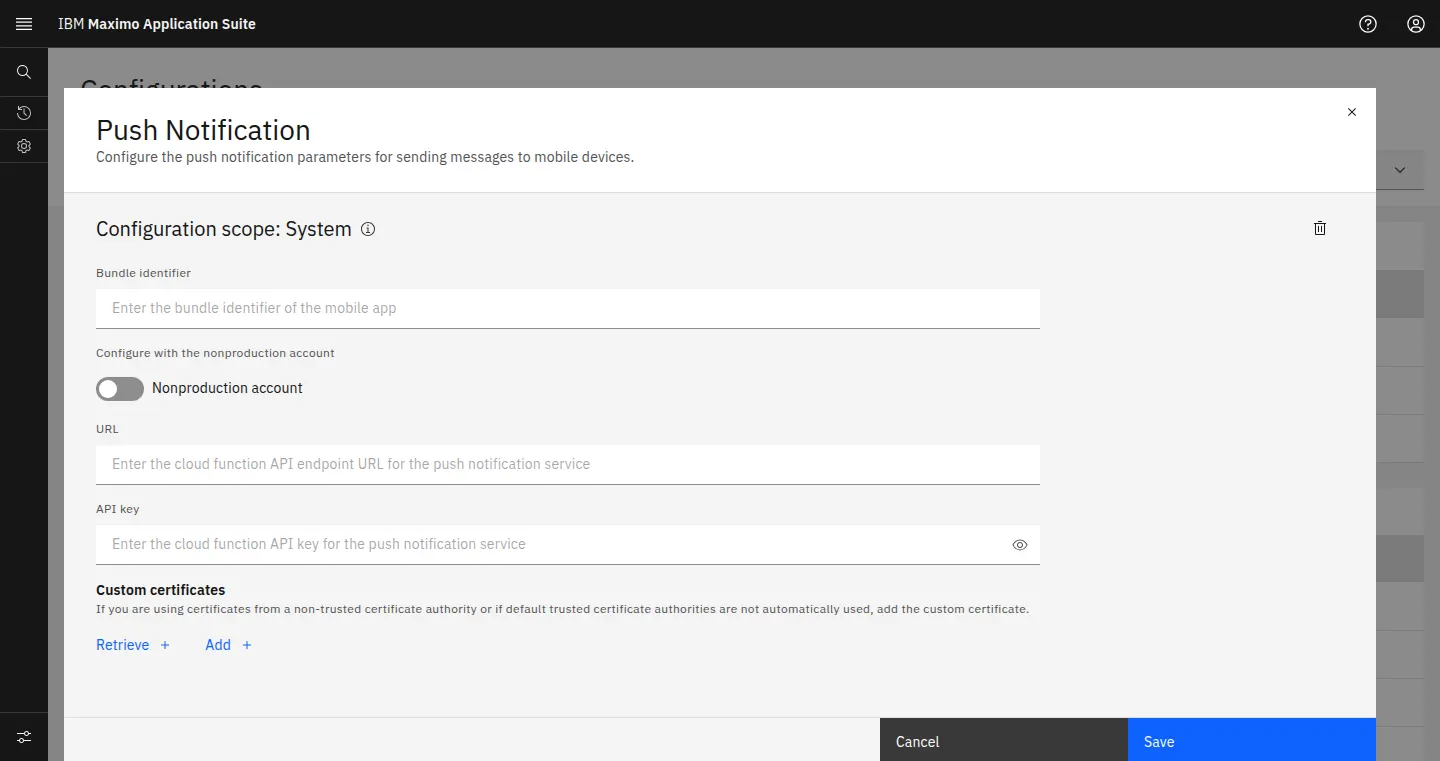
Do this: Bundle identifier: com.ibm.iot.maximo.mobile. Switch Configure with the nonproduction account to Production for production devices. URL: https://pushnotification.suite.maximo.com/pushnotification/sendMessage. API key: the key from IBM's push service. Add a custom certificate only if your egress proxy re-signs TLS. Save.
Why: These values point MAS at IBM's push service for the IBM Maximo Mobile app.
Expected: Status changes from Not configured; the API key stays masked.
In the 9.2.38 lab: Form fields: Configuration scope System, Bundle identifier, Configure with the nonproduction account (label switches to Production), URL, API key with an eye control, Custom certificates with Retrieve and Add, a delete icon, Cancel and Save. Reviewed and cancelled; save it with your IBM push API key.
5.3 Check the push token life
Where: Mobile Configuration > Mobile properties > Push Notification settings
Do this: Find Token life extension (maximo.mobile.pushnotification.tokenlifeextension).
Why: An expert who has not signed in to Maximo Mobile within this many days stops receiving invitations.
Expected: A whole number of days, minimum 1.
In the 9.2.38 lab: Token life extension = 10 days: "The number of days the push notification token has to be kept active since the user's last login on a mobile device."
6 · Every option, screen by screen
One table per screen. Mandatory rows are what a live call needs; optional rows add features or tune behaviour.
Mandatory for a live call
- Collaborate add-on deployed and Ready in the Manage workspace. Runs the Collaborate and signalling services.
- READ on COLLABORATE for technicians and experts; MXAPICOLSESSION, MXAPIPERSONGROUP and MXAPIICESERVER for the same groups. Opens the app and lets it read experts and ICE servers and write sessions.
- At least one person group with Is expert group set and the experts as members. The Experts screen lists only these people.
- One STUN and one TURN server in Collaborate app settings. Finds a media path between the two devices.
- Push Notification configured, with Maximo Mobile signed in on expert devices. Expert availability, invitations and the accept screen travel by push.
- WebSocket and TURN traffic allowed from devices. Signalling and media.
Optional features
- READ on COLLABSESSION for supervisors. Session review and audit.
- Labor crafts and skills on experts. Better Top Skill Matches.
- Alternates, defaults and sequence in expert groups. Shift cover and a first responder.
- TURN over TLS on 443, short TTL credentials. Calls through strict proxies; credential hygiene.
- Production push account, custom certificates, longer token life. Production devices, TLS-inspecting proxies, occasional experts.
- Attachment storage (persistent volume or S3). Keeps the summary PDF on the work order.
| Exact label | Meaning | Default observed | When to change | Example | Verification | Need |
|---|---|---|---|---|---|---|
| Summary | IBM's description of the add-on. | Use artificial intelligence and augmented reality to enable technicians to troubleshoot and repair equipment problems more efficiently. | Read only. | Matches your entitlement. | Shown | |
| Pricing | AppPoints the add-on reserves and the user type it counts. | 0 Reserved AppPoints, Limited users | Read only; plan licences from it. | AppPoint reservation summary total. | Shown | |
| Add-on to | The application the add-on extends. | Manage, Ready to deploy | Read only. | Workspace > Components lists Collaborate. | Shown | |
| Configure | Opens Update Manage workspace configuration to tick Collaborate and pick its version, then Apply changes. | Present | To install, or to move to a newer Collaborate build. | Collaborate, 9.2.48 | CollaborateReady card on the workspace. | Mandatory |
| Exact label | Meaning | Default observed | When to change | Example | Verification | Need |
|---|---|---|---|---|---|---|
| Collaborate: READ Application authorization to COLLABORATE | Opens the Collaborate app (Contact Expert) in the browser and Maximo Mobile. | Ticked for TECHNICIAN and MAXADMIN | Every technician and expert group. | TECHNICIAN, EXPERTS | User sees Collaborate in the navigator. | Mandatory |
| Collab Session: READ Application authorization to COLLABSESSION | Opens Collaboration sessions, the review screen. | Ticked for MAXADMIN, clear for TECHNICIAN | Supervisors, planners, auditors. | MAINTSUP | Work Orders > Collab Session opens. | Optional |
| Collab Session: Work Order ID / Work Order Number from WORKORDER table | Related options for opening the session's work order. | Listed under Collab Session | With READ on Collab Session. | The work order panel shows in the session detail. | Optional | |
| Object structure MXAPICOLSESSION: Read, Insert, Save, Delete | Read and write session records, users and events. | All four for MAXADMIN | Read, Insert and Save for technicians and experts; Delete for administrators. | A new session appears in Collaboration sessions. | Mandatory | |
| Object structure MXAPIPERSONGROUP: Read, Insert, Save, Delete | Read expert groups (everyone) and save them (administrators). | Read for MAXADMIN; Insert and Save added | Read for every Collaborate user; Insert and Save for whoever maintains expert groups. | Your groups appear on the Experts screen. | Mandatory | |
| Object structure MXAPIICESERVER | Read ICE servers (every caller) and maintain them (administrators). | All four for MAXADMIN | Read for every Collaborate user. | Collaborate app settings lists your servers. | Mandatory | |
| Grant Listed Options for This Object Structure | Ticks every option at once, Delete included. | Button above the options | Administrator groups only. Tick single rows for everyone else. | Grant Access? ticked on each row. | Optional | |
| Condition | Limits a grant to records that meet a condition. | Empty | To limit by site or organisation. | SITEID = :&USERSITE& | Records outside the condition are refused. | Optional |
| Exact label | Meaning | Default observed | When to change | Example | Verification | Need |
|---|---|---|---|---|---|---|
| Person Group | The group key. | Required, 8 characters, upper case | Always; name it for the expertise. | PUMPS | Saved key is read-only. | Mandatory |
| Description | What the technician reads beside the group. | Free text, 100 characters, long description button | Always; write it as the skill. | Rotating equipment experts | Shown on the Experts screen. | Mandatory |
| Is expert group (ISEXPERTGROUP) | Makes the group an expert group for Collaborate. | Field on PERSONGROUP, default No; add the check box in Application Designer where the screen has none | On every group Collaborate should offer. | Yes | The group is offered on the technician's Experts screen. | Mandatory |
| Crew Work Group? | Makes the group usable in the crew applications. | Clear | Leave clear for expert groups. | Optional | ||
| Attachments | Documents on the group record. | View attachments | Rosters, call-out sheets. | Optional | ||
| People: Person | A member; each member is a candidate expert. | Lookup to PERSON | One row per expert. | LABUSER2 | Expert appears when online. | Mandatory |
| People: Use for Organization / Use for Site | Limits the member to an organisation or site. | Empty | Experts who cover one site only. | BEDFORD | Optional | |
| People: Group Default? / Site Default? / Organization Default? | The default responder for the group, a site or an organisation. | Clear | Name a first responder. | Group Default? on the lead expert | Optional | |
| People: Sequence | Order in which members are used. | Number | More than one expert. | 10, 20, 30 | Optional | |
| Alternates: Person, Calendar, Shift, Sequence | Stand-ins by calendar and shift. | Empty table | Shift cover for experts. | DAY shift | Optional |
| Exact label | Meaning | Default observed | When to change | Example | Verification | Need |
|---|---|---|---|---|---|---|
| Server type | stun, turn, coturn, twilio or xirsys; decides the fields below. | stun selected first | One row per server; at least one STUN and one TURN. | turn | Expanded row shows the type. | Mandatory |
| Name | Your label for the server. | Required | Always. | Site TURN (TLS 443) | Row title. | Mandatory |
| URL (stun, turn, coturn) | Where devices reach the server. | Required; stun:stun.l.google.com:19302 saved | Always for these types. | turn:turn.example.com:3478?transport=udp; turns:turn.example.com:443?transport=tcp | Trickle ICE gathers srflx (STUN) or relay (TURN) candidates. | Mandatory |
| Username (turn) | Relay user name. | Required for turn | Fixed-credential TURN. | collab-relay | relay candidate gathered with it. | Mandatory |
| Password (turn) | Relay password; handed to each device for the call, stored encrypted, masked. | Required for turn, eye control | Fixed-credential TURN; use a relay-only credential. | (masked) | relay candidate gathered. | Mandatory |
| Secret (coturn, twilio, xirsys) | Shared secret or provider token used to mint short-lived credentials; encrypted, masked. | Required, eye control | coturn with use-auth-secret, Twilio, Xirsys. | (masked) | relay candidate gathered. | Mandatory |
| TTL (coturn, twilio, xirsys) | Seconds a minted credential stays valid. | Optional number | Keep it short; long enough for a call. | 3600 | Calls longer than the TTL keep their relay. | Optional |
| Account ID (twilio, xirsys) | Your account with the provider. | Required for these types | Hosted TURN. | Twilio Account SID | Provider console shows usage. | Mandatory |
| Edit / Delete (row overflow) | Change or remove a server. | Present on each row | Credential rotation, decommissioning. | Row updates. | Optional | |
| Search input text | Filters the server list. | Present | Many servers. | Optional |
| Exact label | Meaning | Default observed | When to change | Example | Verification | Need |
|---|---|---|---|---|---|---|
| Configuration scope | Where the configuration applies. | System | System for a whole MAS instance. | System | Header reads Configuration scope: System. | Shown |
| Bundle identifier | The mobile app push is sent to. | Empty | Always. | com.ibm.iot.maximo.mobile | Devices receive the test invitation. | Mandatory |
| Configure with the nonproduction account | Nonproduction or Production push account. | Nonproduction account | Switch to Production for production devices. | Production | Label reads Production. | Mandatory |
| URL | Push service endpoint. | Empty | Always. | https://pushnotification.suite.maximo.com/pushnotification/sendMessage | Experts list as Available. | Mandatory |
| API key | Your key for IBM's push service; masked. | Empty, eye control | Always. | (from pushnotification.suite.maximo.com/pushnotification/auth) | Invitation arrives on the expert's device. | Mandatory |
| Custom certificates: Retrieve / Add | Trust a certificate the push endpoint presents through your proxy. | Empty | TLS-inspecting egress proxy. | Proxy CA | Save succeeds and push status works. | Optional |
| Delete (bin icon) | Removes the configuration. | Present | To retire push. | Status returns to Not configured. | Optional | |
| Token life extension (Mobile properties) | Days a device stays registered after its last Maximo Mobile sign-in. | 10 (minimum 1) | Raise it for experts who sign in rarely. | 30 | Expert idle for that many days still gets invitations. | Optional |
| Exact label | Meaning | Default observed | When to change | Example | Verification | Need |
|---|---|---|---|---|---|---|
| Session topic, Work Order No., Asset, Location, Start time, Expert, Technician | List columns. | Present | Search and sort. | The run appears. | Shown | |
| Search, columns, filter | Find by topic, work order, asset, technician or expert. | Icons above the table | Audits. | WO11101 | Optional | |
| Download / Select | Export selected sessions. | Present | Reporting. | Optional | ||
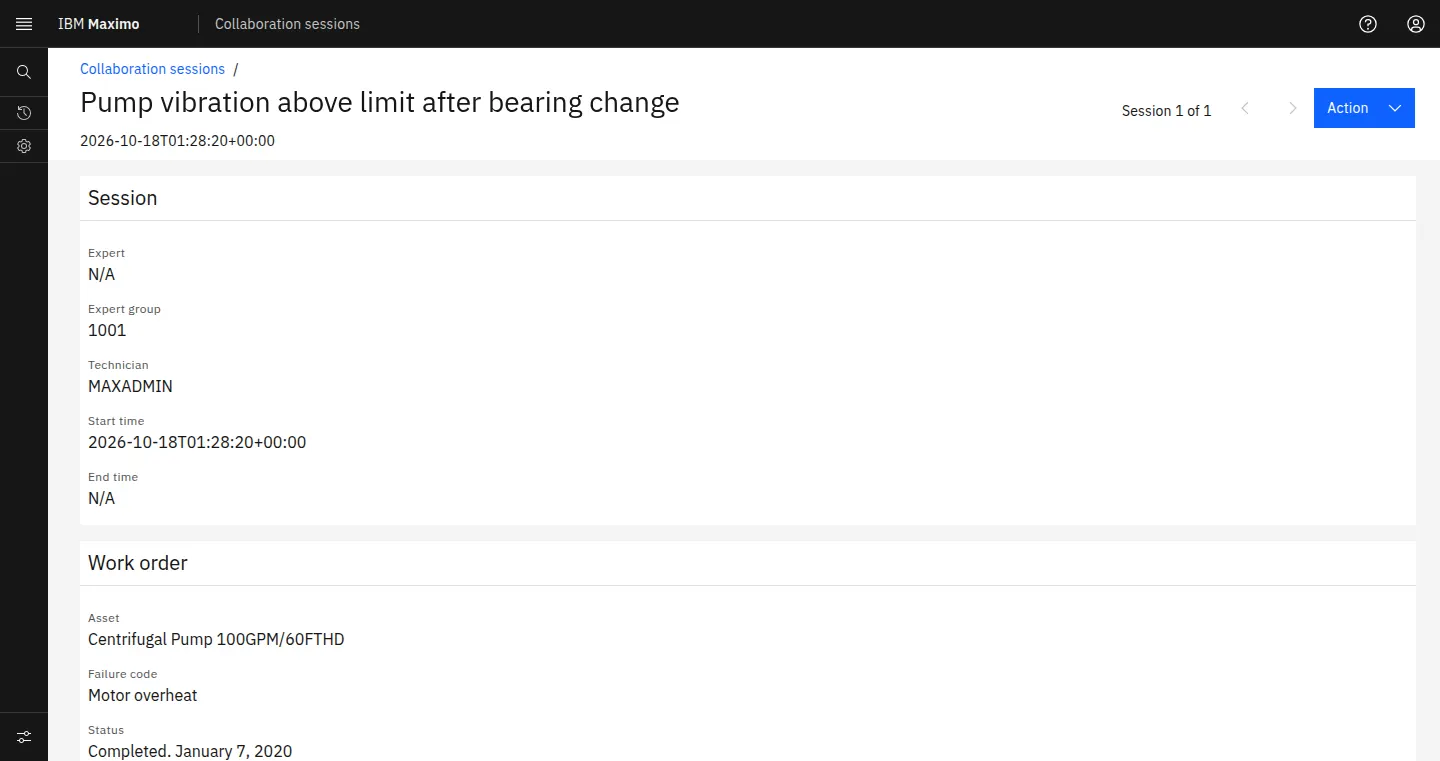
| Session: Expert, Expert group, Technician, Start time, End time | Who took part and when. | End time reads N/A while the session is open | Read only. | End time is set after the session ends. | Shown | |
| Work order panel | Asset, failure code, status, site, serial number, long description. | Filled from the session's work order | Read only. | Matches the work order. | Shown | |
| Action | Session actions, including the summary. | Top right | Download the summary PDF. | PDF opens and is attached to the work order. | Optional |
7 · Run a technician-to-expert session
Use two people on two devices: a technician on a training work order and an expert in the expert group. A session record written through the API proves the records, not the call; the call is proven when both people see and hear each other.
7.1 Technician: ask for help
Where: Maximo Mobile > work order > Get assistance, or Collaborate > Contact Expert
Do this: Type what you need advice about, then press the arrow.
Why: Starting from the work order carries the work order, asset and location into the session.
Expected: Experts screen.
In the 9.2.38 lab: Contact Expert asked "What do you need advice about?". With "Pump vibration above limit after bearing change" entered the arrow turned blue.
7.2 Technician: pick an expert
Where: Collaborate > Contact Expert > Experts
Do this: Choose an expert under Top Skill Matches or Additional Experts. Each shows Available and when they were last active. Review the expert, then send the invitation.
Why: Only online members of expert groups are offered, so the technician never calls someone who cannot answer.
Expected: "Sending invite, please wait..." then "Invite succeed, waiting for a response...".
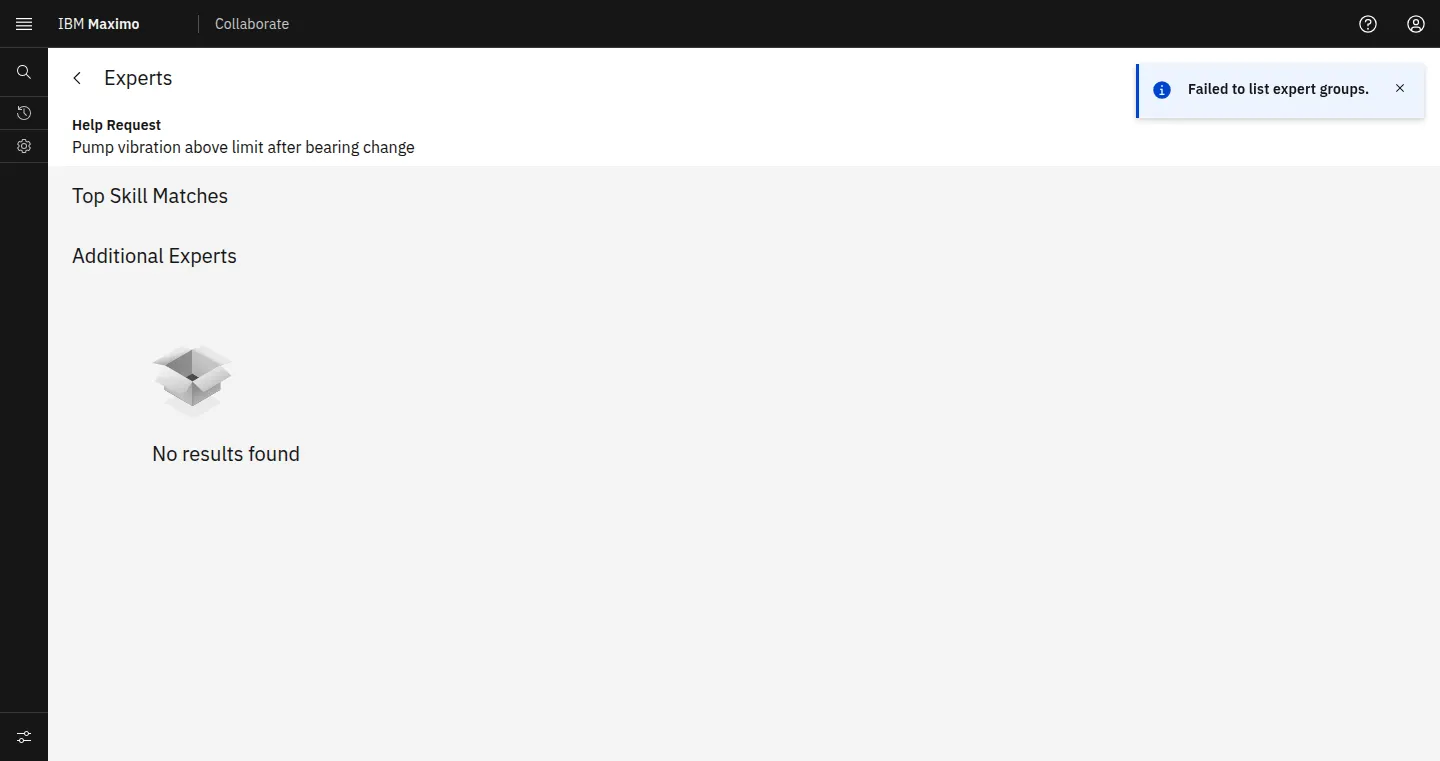
In the 9.2.38 lab: Experts showed Help Request, Top Skill Matches and Additional Experts. The toast "Failed to list expert groups." stays until push is configured and the expert group has members (Troubleshoot).
7.3 Expert: accept
Where: Expert's Maximo Mobile > notification "Collaborate notification"
Do this: Tap the notification. On the accept screen read the topic, the work order and the technician, then accept. To decline, pick a decline reason.
Why: The notification carries the session id that opens the right accept screen.
Expected: "Session accepted successfully", then "Waiting for the Technician to start the session...".
In the 9.2.38 lab: The accept screen opens from the notification on the expert's Maximo Mobile, so it follows push (chapter 5) and an expert signed in through MAS.
7.4 Both: work the job
Where: Collaborate session, on both devices
Do this: Technician: Start, then point the camera at the equipment. Expert: talk the technician through it, capture frames into the gallery and annotate them. Exchange messages. Use audio only where bandwidth is short.
Why: The annotated frames and events become the session's record of what was done.
Expected: Two-way audio, the technician's video at the expert, annotations on the technician's screen.
In the 9.2.38 lab: The 9.2.38 app provides the AR camera, calibration, the frame gallery and the annotation editor. Each event is saved on the session as it happens.
7.5 End the session
Where: Session > End session
Do this: Press End session and confirm "Do you want to end the session?". Add the Note summary when asked.
Why: Ending closes the session, writes the summary and attaches the summary PDF to the work order.
Expected: "Collaborate session closed successfully"; the PDF appears in the work order's attachments.
In the 9.2.38 lab: The app requires a note summary ("Note summary can not be empty.").
7.6 Review the history
Where: Work Orders > Collab Session (Collaboration sessions)
Do this: Find the session by topic, work order, asset, expert or technician. Open it to see the session, the work order and the asset.
Why: This is the supervisor's and auditor's view of every call.
Expected: One row per session; the detail shows expert, expert group, technician, start and end, and the work order context.
In the 9.2.38 lab: Collaborate sessions lists Session topic, Work Order No., Asset, Location, Start time, Expert and Technician, with search, column and filter controls. A session detail shows Expert, Expert group, Technician, Start time and End time, then the work order panel: asset, failure code, status, site, serial number and long description. The Action menu sits top right.
8 · Troubleshoot
The messages Collaborate shows, what causes each one and the fix. Messages marked "seen in the lab" were captured on 9.2.38.
| Where | Message | Cause | Fix |
|---|---|---|---|
| Experts screen: toast and no experts (seen in the lab) | Failed to list expert groups. (console: [CollaborateTechFindExpertsPage]: Error when listing expertGroup Error: Not Found) | The expert status call to the MAS push service failed, or no expert group has members. | Configure Push Notification (chapter 5), flag an expert group and add members (chapter 3), and have the experts sign in to Maximo Mobile with notifications allowed. |
| Top Skill Matches and Additional Experts show "No results found" (seen in the lab) | No results found | No person group has Is expert group set, or every member is offline. | Open Person Groups: confirm Is expert group is ticked and the experts are listed under People; ask an expert to open Maximo Mobile. |
| Person Groups: New Row in People or Alternates (seen in the lab) | BMXAA2319E - Cannot add a row. | The person group record is read-only for this user. In a workspace with Health, Safety and Environment or Oil and Gas, PERSONGROUP runs on the industry-solution class (psdi.plusg.app.persongroup.PlusGPersonGroupSet), and a new group turned read-only after its first save. | Check Security Groups > Applications > Person Groups grants INSERT and SAVE, then have the Manage administrator read the server log for the rule that marks the group read-only. Add members on a group that saves. |
| Expert opens Collaborate without the invitation | Error on loading session. (console: No sessionId found in page params or launch context) | The accept screen needs the session id the push notification carries. | Open the invitation from the notification on Maximo Mobile. |
| Expert accept screen keeps loading (seen in the lab) | [TechnicianSDK]: Failed to get username from MAS | The participant has no MAS sign-in session, so the session layer has no MAS user profile. | Sign in through MAS (SSO) on Maximo Mobile or the browser. |
| Invitation refused | Invalid Request, User is NOT invited or has ALREADY been replied / Invalid Request, Session N is NOT OPEN | The expert already answered, or the session closed. | Start a new request from the work order. |
| No picture or sound | Camera or microphone prompt denied; Expert Disconnected | Device permission, or another app holds the camera. | Allow camera and microphone for Maximo Mobile (or the site in the browser), close other camera apps, and rejoin. |
| Call connects on office Wi-Fi but not in the field | Can not add ICE candidate / connection failed | No relay path: TURN missing, blocked, or its credentials expired. | Add TURN on UDP 3478 and TLS 443, check relay ports on the firewall, keep the TTL longer than a call, and test with Trickle ICE from the field network. |
| Session never starts | Failed to construct signalling URL from masHomeUrl / Socket connection failed, reply not sent | The device cannot open the Collaborate WebSocket, or Collaborate was opened outside the MAS shell. | Open Collaborate from MAS or Maximo Mobile; allow WebSocket upgrades to <workspace>-collaborate.<domain> or <manage host>/manage/collaborate. |
| Ending the session | Note summary can not be empty. | The summary note is required. | Enter the summary. Check attachment storage if the PDF is missing from the work order. |
| Opening many Manage tabs (seen in the lab) | You have reached the maximum number of sessions allowed for a user | mxe.webclient.maxUISessionsPerHttpSession (10 in the lab). | Close unused Manage tabs or sign out and in. |
| MAS Users page (seen in the lab) | AIUCO1999E: Internal Server Error: Failed to fetch users from Manage | MAS cannot reach the Manage authorization service. | Fix the MAS to Manage user sync before adding technicians and experts; until then maintain users in Manage. |
9 · Acceptance checklist
Run it on every environment. Configured: the setting is saved. Exercised: a person used it. Independently verified: a second person or a separate read confirms it.
| Item | Configured | Exercised | Independently verified |
|---|---|---|---|
| Add-on deployed | Workspace > Components lists Collaborate with a version and Ready | Collaborate, Collab Session and Collaborate app settings open | CollaborateReady card reads Deployment is Available |
| Technician access | READ on COLLABORATE for the technician group | Technician opens Contact Expert | A second administrator reads the grant in Security Groups |
| Supervisor access | READ on COLLABSESSION for the supervisor group | Supervisor opens Collaboration sessions | A technician without the grant cannot open it |
| Object structures | MXAPICOLSESSION, MXAPIPERSONGROUP, MXAPIICESERVER granted | A session record saves | A supervisor finds the session in Collaboration sessions |
| Expert group | Person group with Is expert group and members | Technician sees the group on Experts | A second administrator sees Is expert group ticked and the members on Person Groups |
| STUN | stun row in Collaborate app settings | Call on an open network | Trickle ICE gathers a srflx candidate |
| TURN | turn or coturn row, UDP 3478 and TLS 443 | Call from the field network | Trickle ICE gathers a relay candidate from that network |
| Push | Push Notification saved with bundle id, URL and API key | Expert receives the invitation | Expert shows as Available to a technician on another device |
| Live session | All of the above | Technician and expert, two devices, see and hear each other and annotate a frame | Each participant confirms what the other saw; the session lists both |
| End and summary | Attachment storage | End session with a note summary | Summary PDF attached to the work order; End time set in Collaboration sessions |
| History | READ on COLLABSESSION | Supervisor finds the session by work order | Session detail matches the work order and both participants |
IBM references
- IBM — What's new in Maximo Collaborate 9.2
- IBM — Installing and deploying Maximo Collaborate (9.2 post-installation tasks)
- IBM — Configuring Collaborate app settings (ICE servers, Manage 9.2)
- IBM — Interactive Connectivity Establishment (ICE) server
- IBM — Configuring push notifications for Collaborate
- IBM — Push notifications in Maximo Mobile (network requirements)
- IBM — Managing the Collab Session application in Maximo Manage
- IBM — Creating person groups
- IBM — Storage for attached document libraries
- IBM support — Collaborate 9.2.48 (path-based routing support)